


Introduction: Why This Integration Matters to Everyday Users
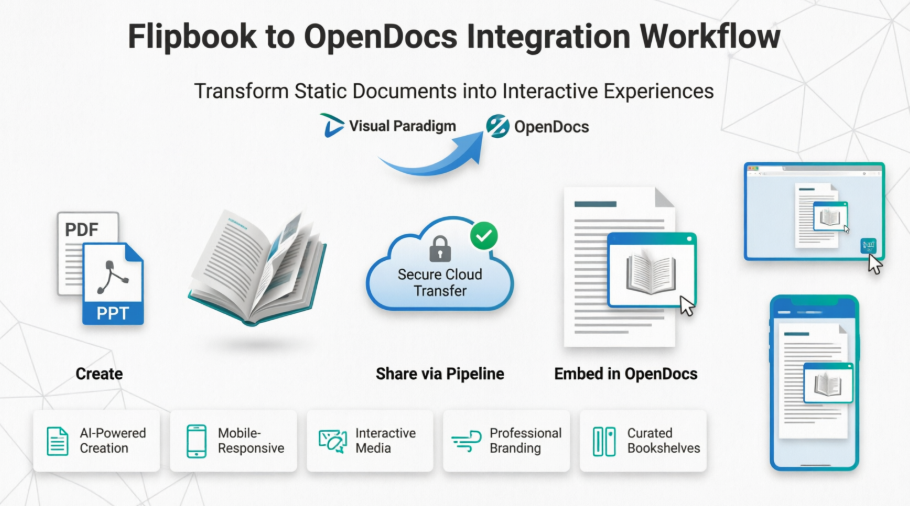
As someone who regularly creates training materials, client reports, and portfolio documentation, I’ve long struggled with a common pain point: how to make static documents feel engaging without resorting to complex web development or third-party embedding hacks. When I heard about Visual Paradigm’s new integration allowing flipbooks and digital bookshelves to flow directly into OpenDocs, I decided to put it through its paces. What follows is my honest, hands-on walkthrough of the experience—from setup to final publication—written from the perspective of a practitioner, not a promoter. If you’re weighing whether this workflow fits your team’s documentation needs, this review aims to give you the unvarnished details.
First Impressions: What the Integration Actually Delivers
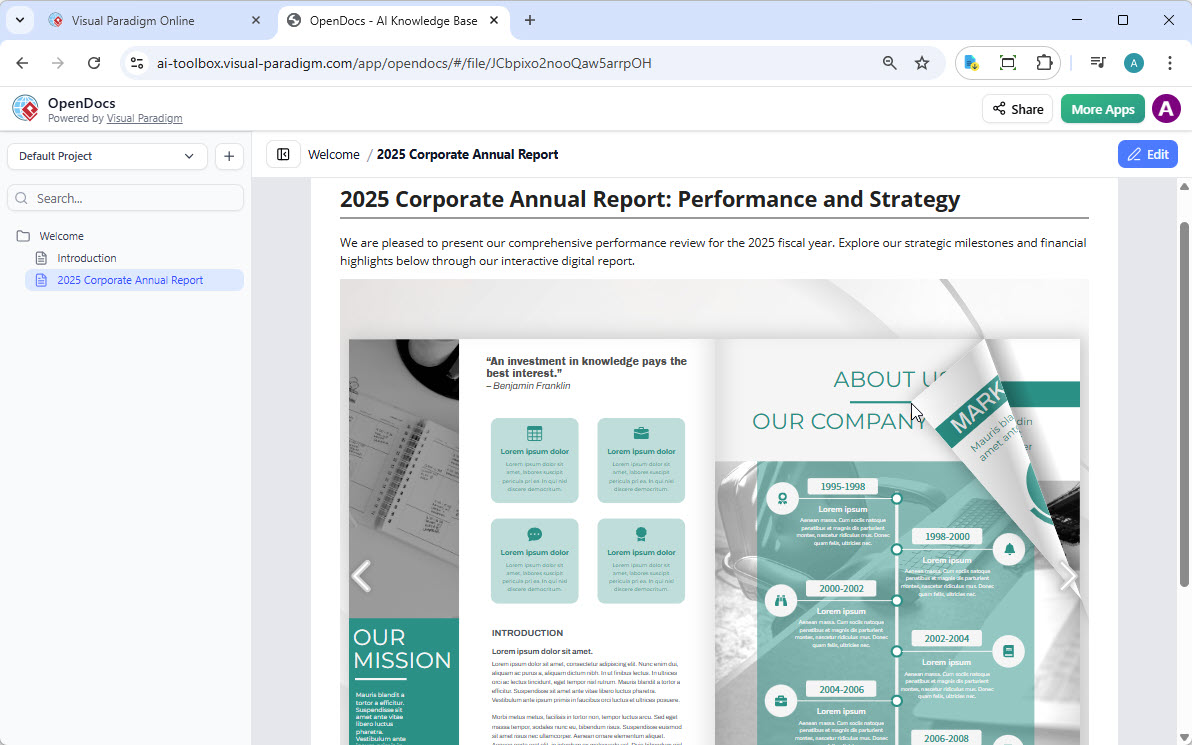
From a user standpoint, the core promise is simple: take flipbooks created in Visual Paradigm Online and embed them natively into OpenDocs pages. After testing the workflow across multiple document types (product manuals, quarterly reports, and a photography portfolio), I found the integration delivers on its core value proposition—interactivity without friction.
What Users Can Do with Visual Paradigm Flipbooks (Real-World Perspective)
Based on my usage, here’s what stands out about the flipbook capabilities when paired with OpenDocs:
-
Convert & Create: I tested uploading a 45-page PDF training manual. The conversion to flipbook took under two minutes, and the drag-and-drop editor let me rearrange sections without re-exporting from the source file. For users who work from PowerPoint decks, the direct slide-to-flipbook path saved significant reformatting time.
-
AI-Powered Generation: While I typically write my own content, I experimented with the AI assistant to generate an outline for a new employee handbook. The suggestions were structurally sound, and the ability to request illustrations in “minimalist line art” style produced usable placeholder graphics. Caveat: AI-generated text still requires human review for tone and accuracy.
-
Interactive Elements: Embedding a product demo video directly into a flipbook page worked seamlessly. Page-flipping sound effects can be toggled per project—a thoughtful detail for professional contexts where audio might be distracting.
-
Professional Branding: Applying our company’s color palette to the flipbook theme was straightforward. The cover designer offers enough flexibility for brand alignment without overwhelming non-designers.
-
Mobile-First Reading: I tested the embedded flipbook on iOS, Android, and desktop browsers. Responsiveness was consistent, and touch gestures for page navigation felt intuitive.
Step-by-Step: Sharing a Flipbook from Visual Paradigm Online to OpenDocs
Here’s exactly how the workflow felt during my testing:
-
Open your workspace page in Visual Paradigm Online.
-
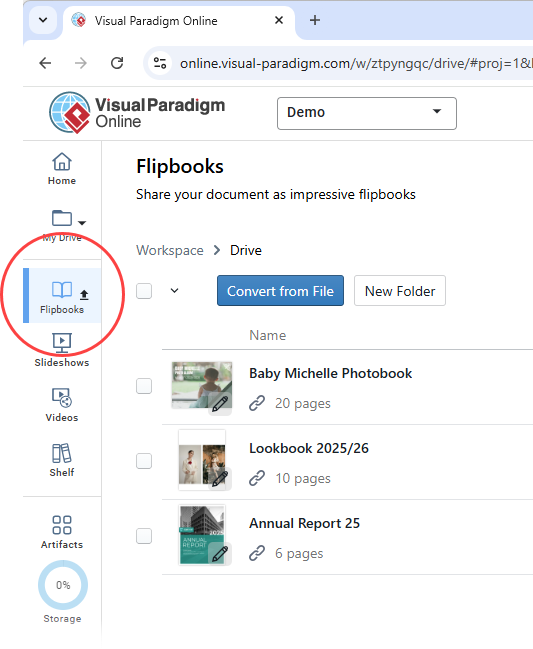
Select Flipbooks from the left-hand menu to view your library.
-
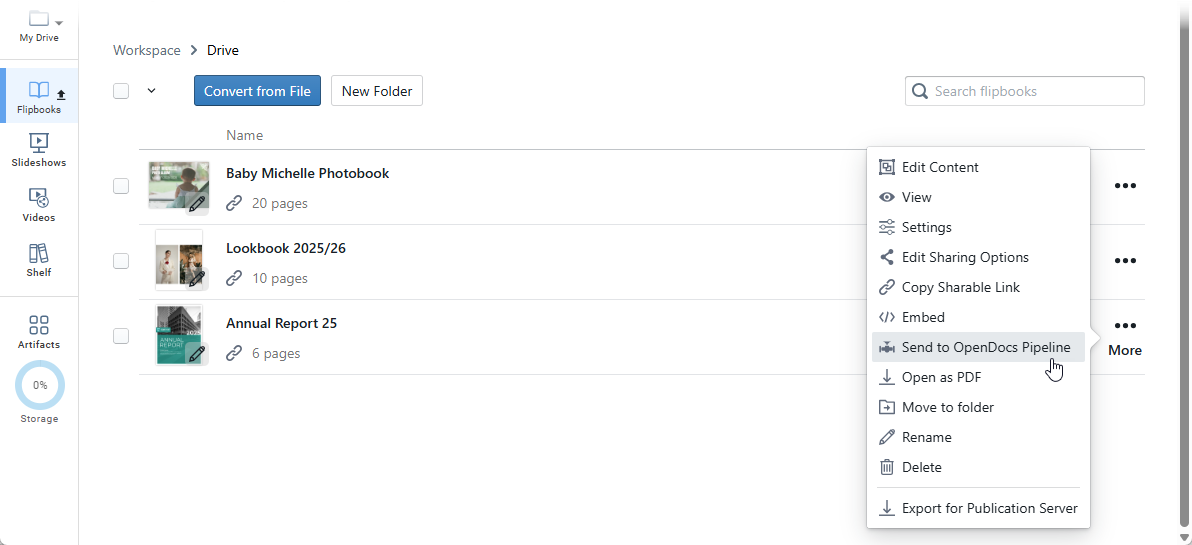
Locate the flipbook you wish to share and click More… on the right side.
-
Select Send to OpenDocs Pipeline.
-
(Optional) Enter a comment regarding this share and click OK to proceed.
User Note: The “comment” field is useful for team contexts—I used it to note “Q2 Training Materials – Review Before Publishing,” which appeared in the OpenDocs pipeline log. This small feature added helpful context for collaborators.
Embedding the Flipbook in OpenDocs: A Practical Walkthrough
Once the flipbook arrives in the pipeline, embedding it into an OpenDocs page is refreshingly straightforward:
-
Navigate to the page in OpenDocs where you want to embed the book.
-
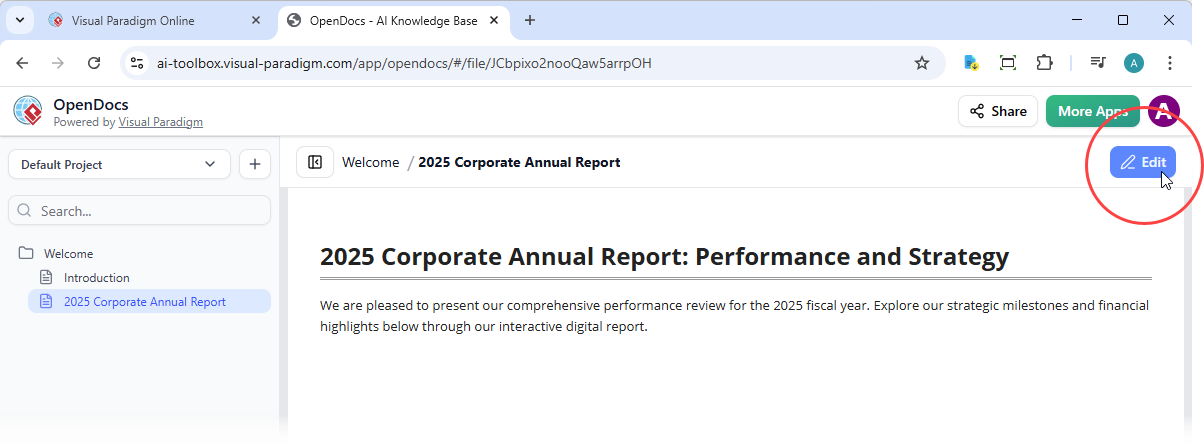
Click Edit at the top right of the screen.
-
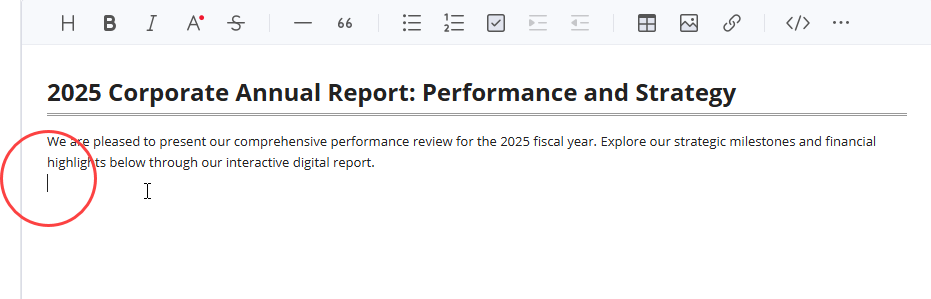
Position your cursor exactly where you want the flipbook to appear.
-
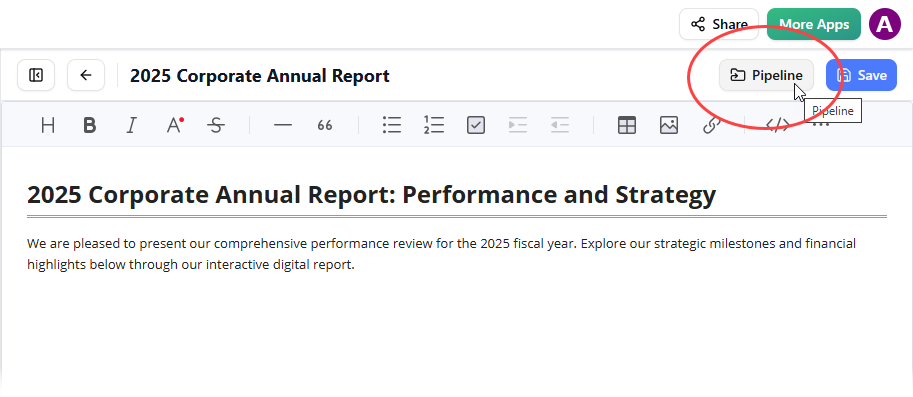
Click the Pipeline button located at the top right.
-
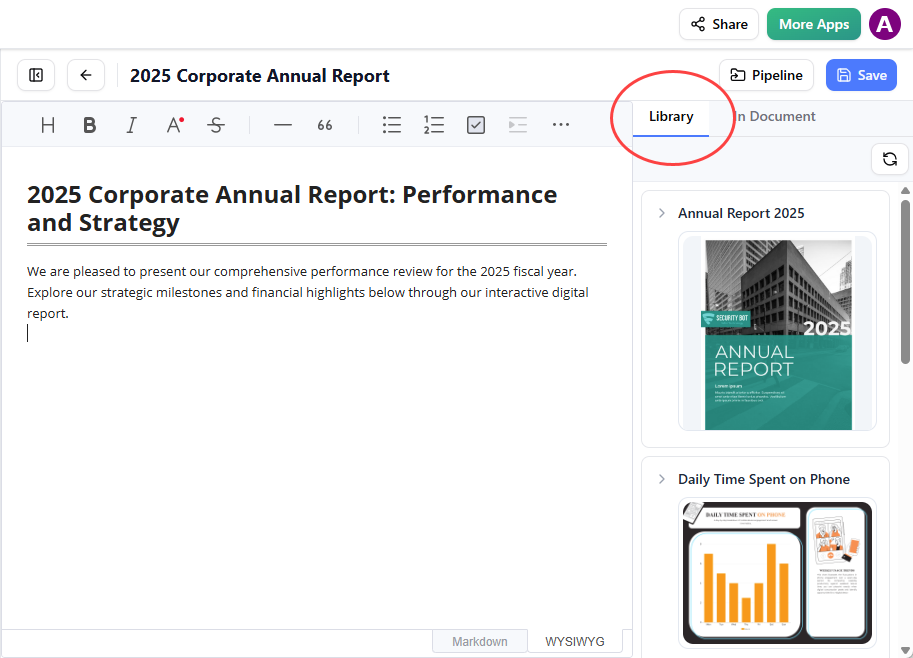
Open the Library tab; you will see the flipbook you sent from VP Online.
-
Click on the flipbook to insert it.
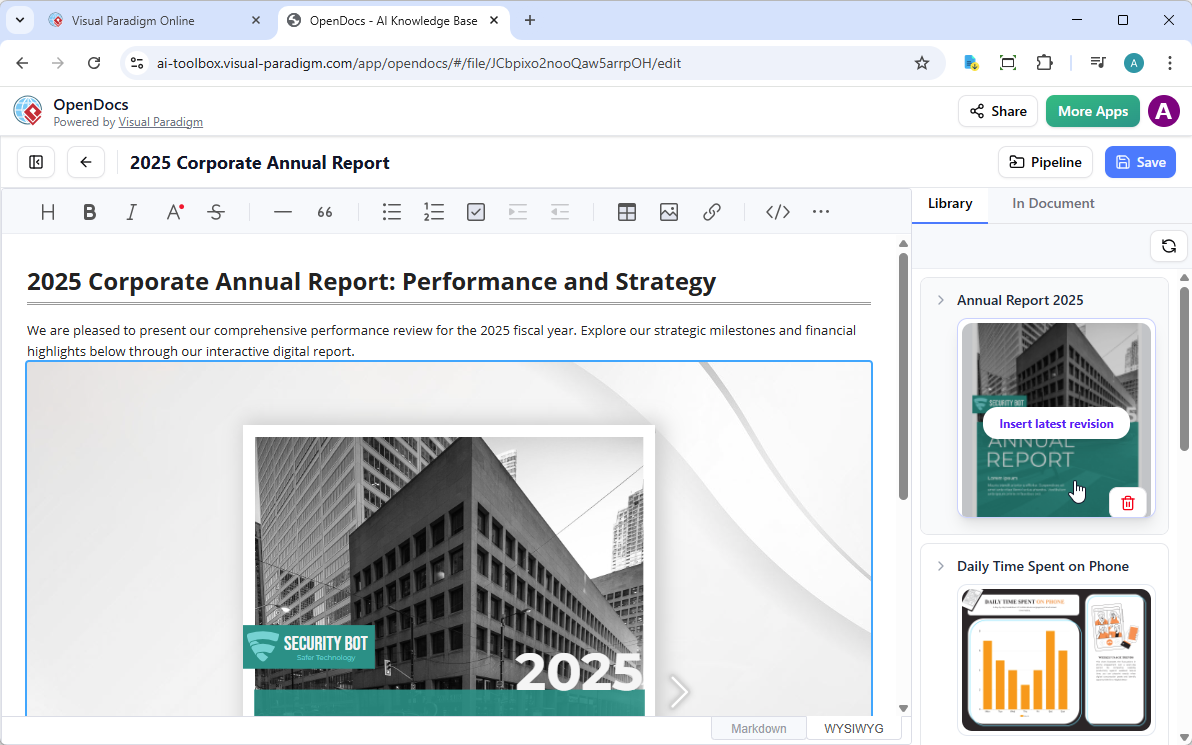
Tip: If the flipbook is added to the end of the page, select it and press Enter to create a new line and adjust the positioning.
Critical User Insight: In Edit mode, the flipbook appears as a static placeholder. This initially confused me—I thought the embed had failed. The key is to save and exit Edit mode to activate the interactive viewer. Once live, the page-flipping animation, embedded media, and responsive layout all function as expected.
Leveling Up: Organizing Content with Digital Bookshelves
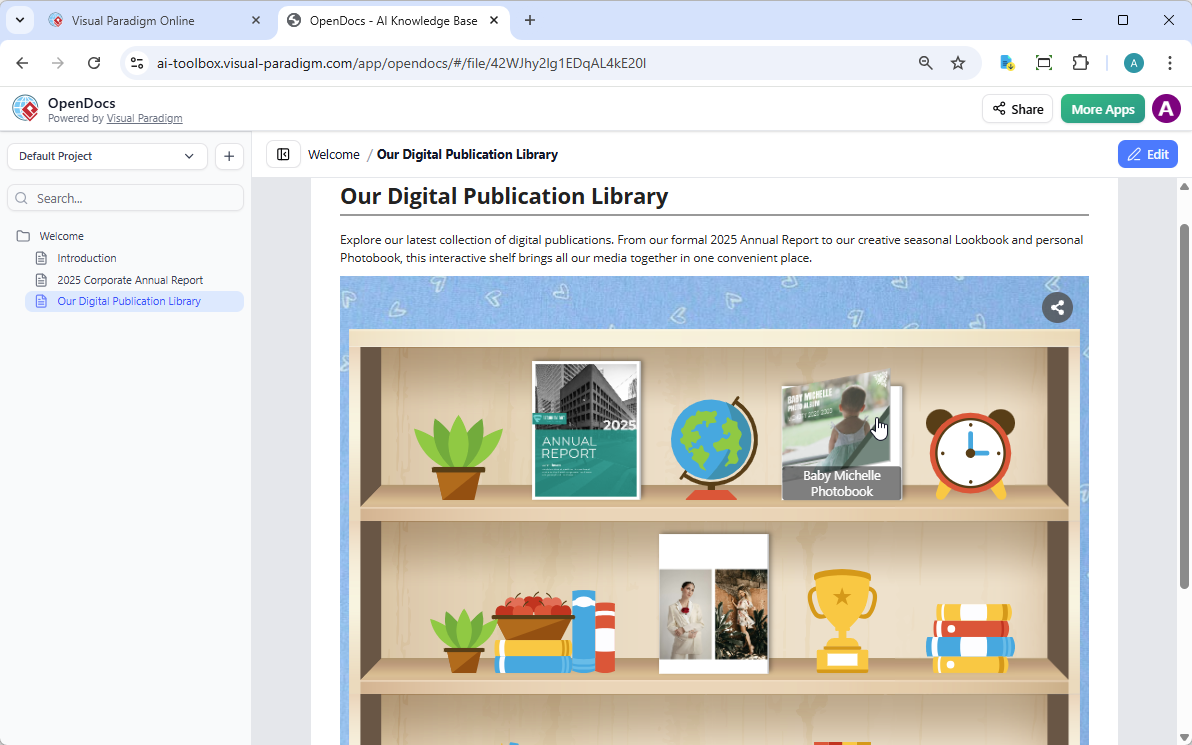
For users managing multiple related documents—like a series of onboarding guides or a product documentation suite—the bookshelf feature adds valuable organization. From my testing, here’s how it compares to individual flipbook embedding:
Flexible Sharing Strategies: What Worked for Me
-
Individual Flipbooks: Best for spotlight content. When I embedded our Annual Report as a standalone flipbook, reader engagement metrics (via OpenDocs analytics) showed longer time-on-page compared to PDF attachments.
-
Curated Bookshelves: Ideal for thematic collections. I grouped five departmental handbooks onto one shelf. Users could browse titles visually before selecting what to read—a more intuitive experience than a bulleted link list.
Sending a Bookshelf to the Pipeline: My Experience
-
Navigate to your workspace in Visual Paradigm Online.
-
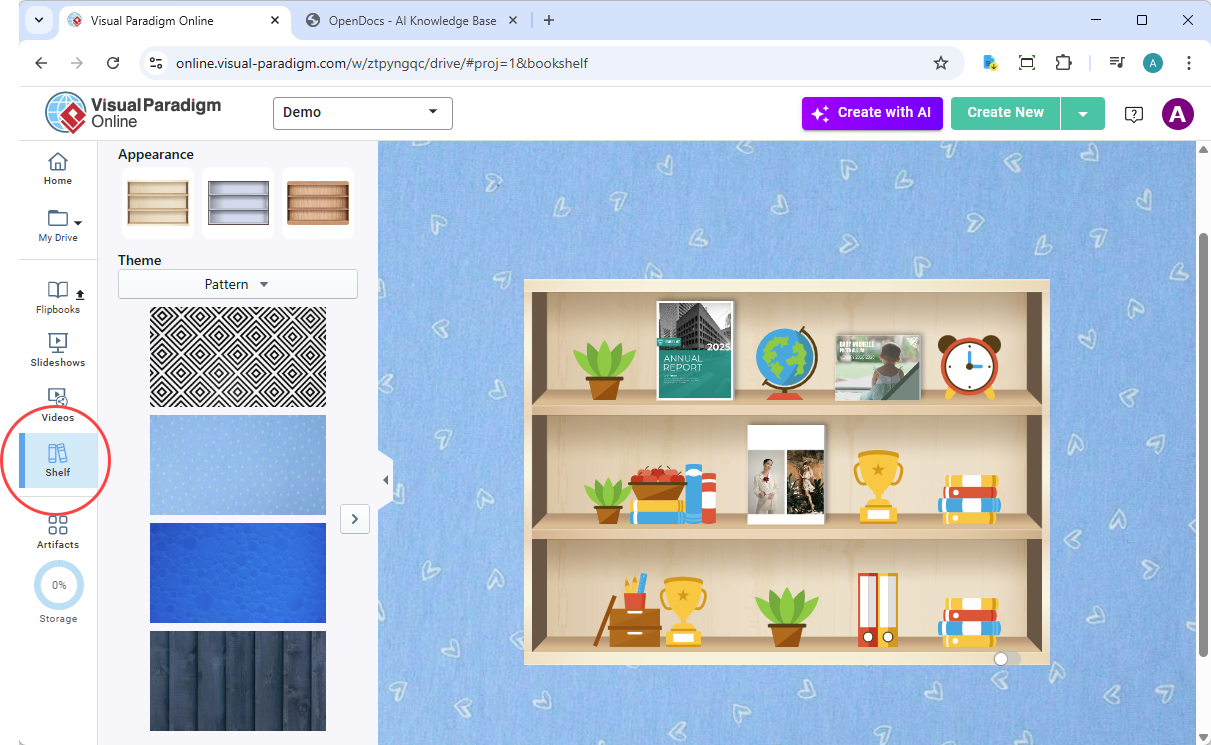
Select Shelf from the left-hand menu.
-
Select the bookshelf you wish to publish.
-
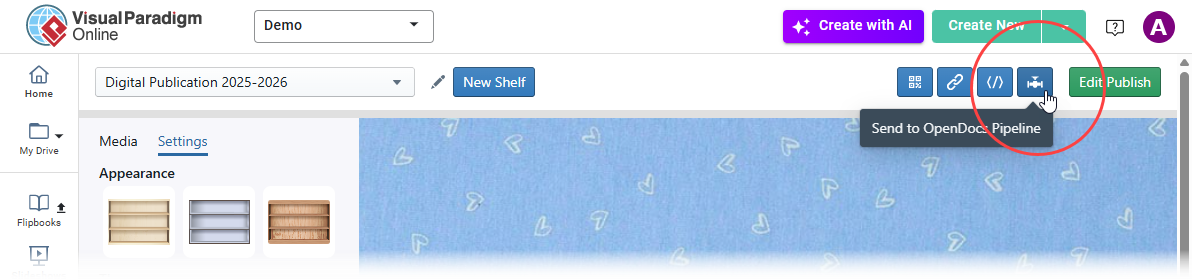
Click the Pipeline icon button at the top right of the screen.
-
(Optional) Enter a comment and click OK.
Pro Tip: Name your bookshelves descriptively in VP Online (e.g., “2026 Product Documentation Suite”)—this name carries through to OpenDocs and helps with discoverability.
Embedding the Bookshelf in OpenDocs: What to Expect
-
Open your OpenDocs page and click Edit.
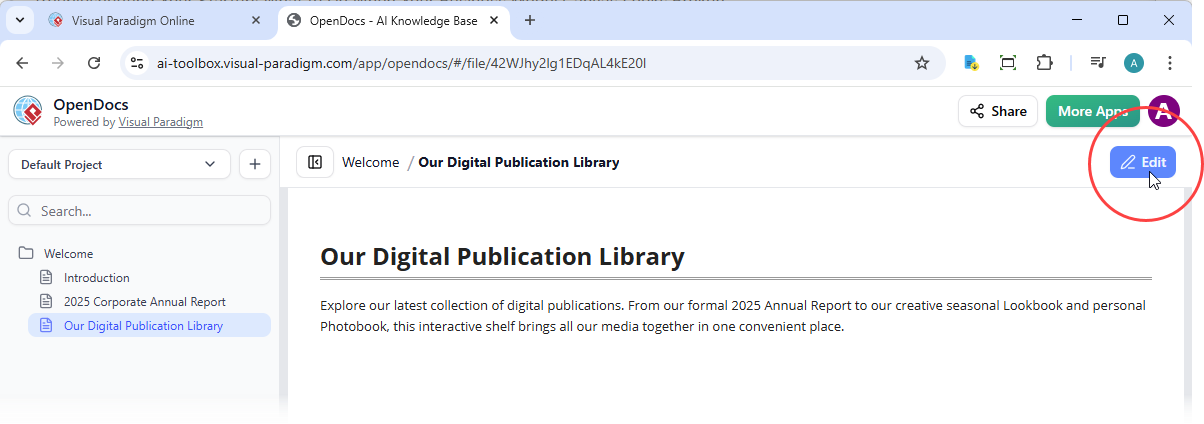
-
Position your cursor where you want the shelf to appear.
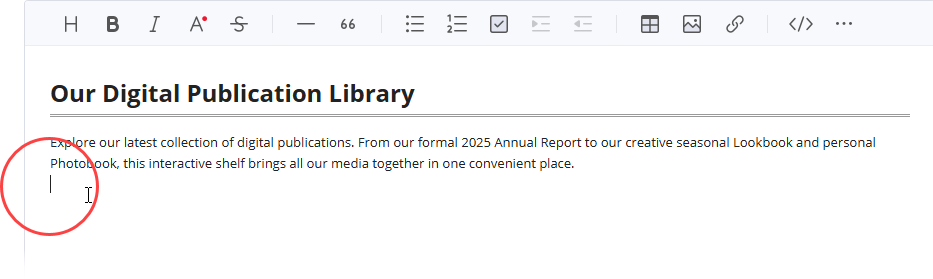
-
Click the Pipeline button (top right).
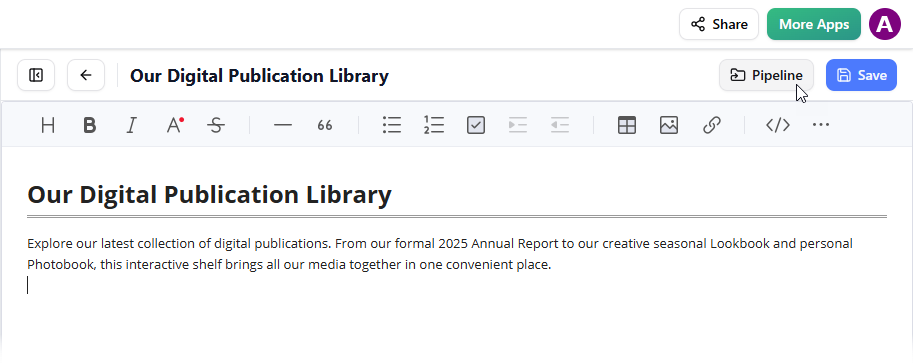
-
Open the Library tab.
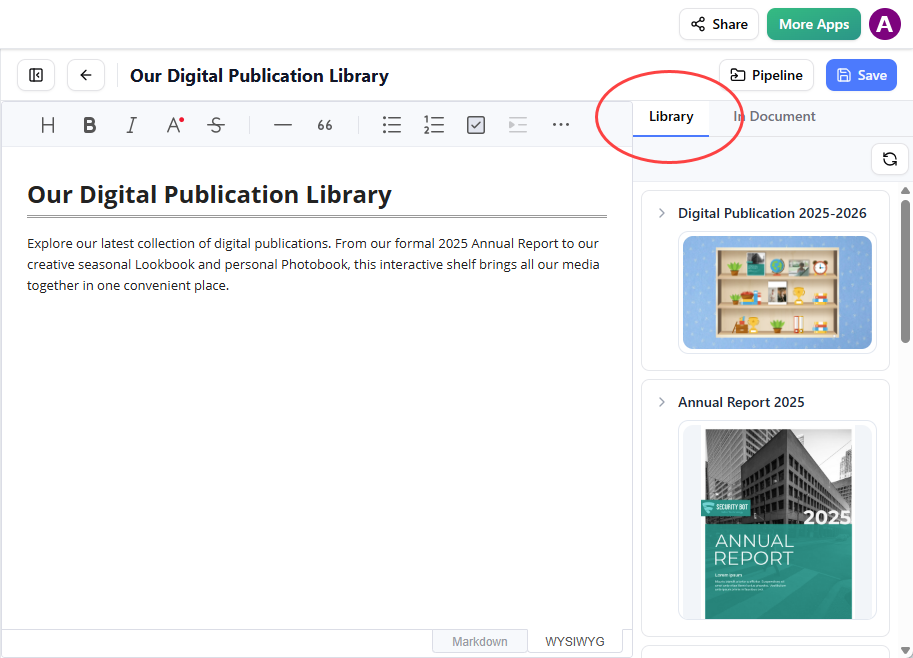
-
Select your bookshelf to insert it into the page.
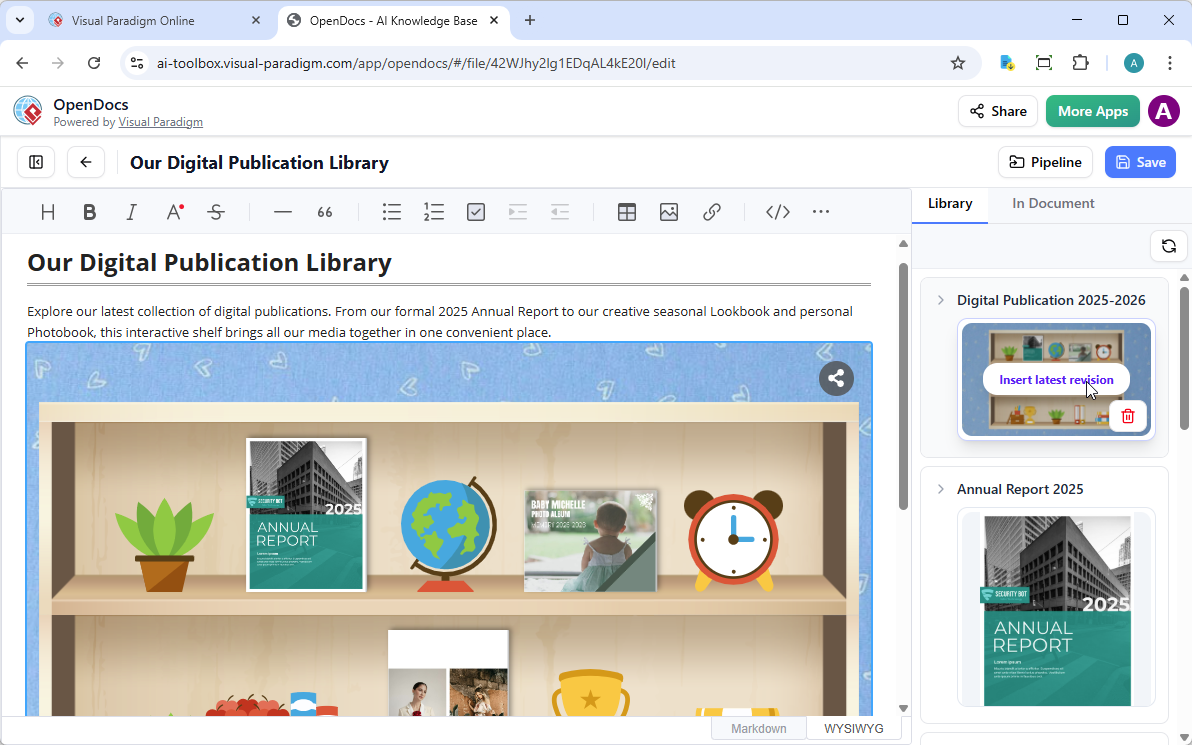
Tip: To move your cursor below the shelf after insertion, select the shelf and press Enter.
User Observation: The bookshelf embed maintains its visual layout across devices. On mobile, the shelf becomes horizontally scrollable—a smart adaptation that preserves usability without sacrificing the curated aesthetic.
Practical Tips from Real-World Usage
After deploying this workflow across three projects, here are insights that might save you time:
-
Test Interactivity Post-Publish: Always exit Edit mode to verify flipbook functionality before sharing links externally.
-
Leverage Pipeline Comments: Use the optional comment field during sharing to document version notes or review status—this creates an audit trail within OpenDocs.
-
Optimize Source Files: For fastest conversion, ensure PDFs are under 100MB and avoid complex layered graphics that may not translate perfectly to the flipbook renderer.
-
Mobile Preview Early: Check how your embedded flipbook or shelf renders on mobile during the drafting phase, not just after publishing.
-
Combine with OpenDocs AI Features: I found pairing flipbook embeds with OpenDocs’ AI-generated summary sections created a powerful “overview + deep dive” content structure.
How to Publish OpenDocs Content to WordPress: Two Simple Methods
Method 1: Direct Export to a WordPress Page
Step-by-Step Instructions
- Generate a WordPress Application Password
Navigate to your WordPress dashboard: Users > Profile > Application Passwords. Give your password a descriptive name (e.g., “OpenDocs Integration”) and click Add New Application Password. Save the generated password securely—you’ll need it for the next step. - Initiate Export in OpenDocs
In your OpenDocs project, click the Share button. Select the pages or sections you want to publish, then choose between:- Live Update: Content stays synchronized with your OpenDocs source.
- Static Snapshot: Publishes a fixed version of your content at the time of export.
- Publish to WordPress
Select WordPress Page as your destination. Enter your WordPress site URL, username, and the application password you generated. Click Publish, and OpenDocs will automatically create and populate a new page on your site. [1, 2, 3, 4]
Method 2: HTML Embed Code
Step-by-Step Instructions
- Get the Embed Code
In OpenDocs, click Share, then select the Embed Code (</>) icon. Copy the provided<iframe>snippet. - Add to WordPress
In your WordPress editor, add a Custom HTML block to your page or post. Paste the iframe code directly into the block. Save or update your page, and your OpenDocs content will appear seamlessly within your existing layout. [6, 7, 8]
Quick Comparison: Which Method Should You Choose?
|
Feature
|
WordPress Page Export
|
HTML Embed Code
|
|---|---|---|
|
Best Use Case
|
New, standalone documentation pages
|
Integrating content into existing pages
|
|
Setup Speed
|
Faster for dedicated pages
|
Quick for inline embedding
|
|
Content Updates
|
Live Update mode enables auto-sync
|
iframe reflects source updates automatically
|
|
Design Control
|
Full WordPress theme styling
|
Responsive iframe; styling controlled via OpenDocs
|
|
Technical Skill
|
Minimal (guided workflow)
|
Basic HTML knowledge helpful
|
Live Update vs. Static Snapshot: What’s the Difference?
- Live Update: Your WordPress content stays dynamically linked to your OpenDocs source. Any edits you make in OpenDocs automatically reflect on your WordPress site—ideal for evolving documentation or collaborative knowledge bases.
- Static Snapshot: Publishes a fixed version of your content at the time of export. Perfect for archiving project deliverables, compliance documentation, or content that shouldn’t change post-publication.
Final Thoughts
- Export OpenDocs to WordPress Page Guide
- OpenDocs Embed HTML Code Tutorial
- Video Walkthrough: Embedding OpenDocs
Conclusion: Is This Workflow Worth Your Time?
From a practitioner’s perspective, Visual Paradigm’s flipbook and bookshelf integration with OpenDocs solves a genuine documentation challenge: making rich, interactive content accessible without technical overhead. The workflow is intuitive enough for non-technical team members to adopt, yet flexible enough for power users to customize branding and interactivity.
Where it shines: reducing context-switching between content creation and documentation platforms, enhancing reader engagement through interactive elements, and providing a visually cohesive way to organize related materials.
- Where to temper expectations: AI-generated content still requires editorial oversight, and the “static in Edit mode” behavior, while logical, may initially confuse new users.
For teams already using Visual Paradigm Online, this integration feels like a natural, high-value extension. For those evaluating documentation platforms, the ability to embed interactive flipbooks natively—without iframes or custom code—represents a meaningful differentiator. If your work involves sharing reports, training materials, or portfolios where presentation impacts comprehension, this workflow deserves a trial run.
References
- OpenDocs: AI-Powered Knowledge Platform Launch: Announcement of OpenDocs as an AI-powered knowledge management platform
- OpenDocs Features Overview: Official feature breakdown of Visual Paradigm’s OpenDocs tool
- Developer’s Guide to AI-Powered Technical Documentation with OpenDocs: Comprehensive developer-focused guide for using OpenDocs
- Complete Guide to AI-Powered Knowledge Management and Diagram Generation: In-depth resource covering knowledge management workflows with OpenDocs
- OpenDocs ERD AI Generation Feature Release: Update on AI-powered Entity Relationship Diagram generation capabilities
- Syncing AI Diagrams to OpenDocs via Pipeline: User Guide: Step-by-step instructions for transferring diagrams from Visual Paradigm Desktop to OpenDocs
- Visual Paradigm Online to OpenDocs Export Tutorial: Guide for exporting content from VP Online to the OpenDocs platform
- AI Profile Diagram and UML Support in OpenDocs: Feature update on AI-generated UML and profile diagrams
- Comprehensive Guide to Visual Paradigm AI Architecture Features: Strategic overview of Visual Paradigm’s AI capabilities and architectural value