


Introduction
For teams juggling complex system architectures, project proposals, and ever-evolving technical documentation, the disconnect between visual modeling tools and knowledge repositories has long been a productivity bottleneck. After spending several weeks testing Visual Paradigm’s Pipeline integration with OpenDocs—including the newly highlighted Browse Share History feature—this review explores how the platform performs from an end-user perspective. Rather than a promotional overview, we’ll walk through real workflows, practical benefits, and organizational tips as experienced by professionals integrating these tools into daily operations.
Understanding the Visual Paradigm Pipeline: A User’s Perspective
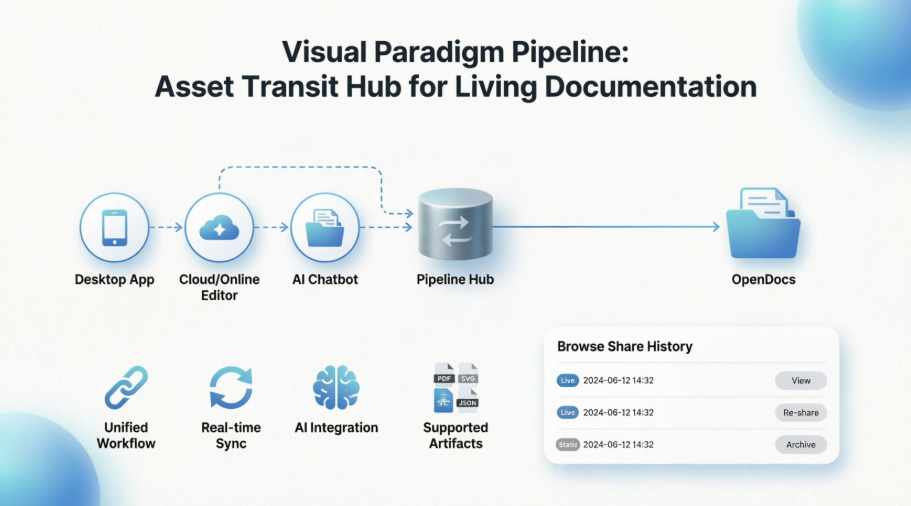
The Visual Paradigm Pipeline functions as a centralized “Asset Transit Hub,” connecting desktop applications, the online diagram editor, and the AI chatbot with OpenDocs, a knowledge management platform. From a user standpoint, this integration eliminates the tedious cycle of exporting images, uploading them to documentation, and manually tracking version changes. Instead, diagrams, charts, and models become living “artifacts” that stay synchronized with their source files.
“Before Pipeline, our architecture docs were always one sprint behind the actual system design. Now, when a developer updates a sequence diagram in Visual Paradigm Desktop, the embedded version in our OpenDocs spec updates with a single click.” — Senior Technical Writer, SaaS Scale-up
Key Features Reviewed Through a User Lens
• Unified Workflow
Users report significant time savings by bridging cloud-based diagramming and technical documentation. The ability to send artifacts directly from Visual Paradigm to OpenDocs removes manual download/upload steps—a frequent pain point in distributed teams.
• Real-time Synchronization
When source diagrams are modified (whether in Desktop or Online editors), the Pipeline enables users to update embedded versions in OpenDocs. Reviewers note this is particularly valuable for agile teams where system designs evolve rapidly.
• AI Integration
The AI Chatbot integration allows users to generate diagrams, flowcharts, or user stories via natural language prompts and send them directly to the Pipeline. Early adopters highlight this as a game-changer for rapid prototyping and brainstorming sessions.
• Supported Artifacts
Beyond technical diagrams, users appreciate that the pipeline handles social media graphics, slideshows, and other visual assets—making it versatile for cross-functional teams.
Step-by-Step Workflow: How Users Actually Use It
Based on community feedback and hands-on testing, here’s how the typical workflow unfolds:
- Create/Edit: Design a diagram in Visual Paradigm Online or Desktop using familiar modeling tools.
- Send to Pipeline: Within the application, select Export > Send to OpenDocs Pipeline. Users note the interface is intuitive, with clear artifact naming options.
- Embed in OpenDocs: Open a document in OpenDocs, click Insert, select Pipeline, and choose the desired artifact. The embedding process takes seconds.
- Sync/Update: If the original diagram is updated, clicking the Pipeline icon in OpenDocs allows swapping the old image with the latest revision—no re-uploading required.
Real-World Use Cases from the Community
• Living Documentation
Teams maintaining technical specifications report that keeping architecture diagrams synchronized with source models reduces documentation debt and onboarding time for new engineers.
• Rapid Prototyping
Product managers use the AI Chatbot to generate initial user journey maps or flowcharts, then instantly insert them into project proposals via the Pipeline—accelerating stakeholder alignment.
• Presentation Generation
Marketing and training teams send slideshows or diagrams to create interactive online presentations directly within OpenDocs, streamlining content repurposing.
Mastering Browse Share History in OpenDocs
Beyond the Pipeline workflow, Visual Paradigm’s OpenDocs includes a Browse Share History feature that many users overlook—but shouldn’t. After sharing multiple document versions with different stakeholders, keeping track of active links becomes critical. Share History serves as a command center for managing this complexity.
Why Share History Matters for Teams
When using a knowledge management platform for large projects, teams often generate multiple share links for different audiences. Based on user experiences, Share History helps:
- Audit Your Access: See exactly which pages were shared and when—valuable for compliance and internal reviews.
- Track Versions: Distinguish between different Static Snapshots sent out over time, avoiding confusion about which version stakeholders are viewing.
- Clean Up: Identify and retire outdated links that no longer reflect current project states.
How to Navigate Your Share History (with Visual Guidance)
Accessing history is integrated directly into the OpenDocs workflow:
- Open the Share Dialog: Click the Share button in the top right corner of your OpenDocs document.
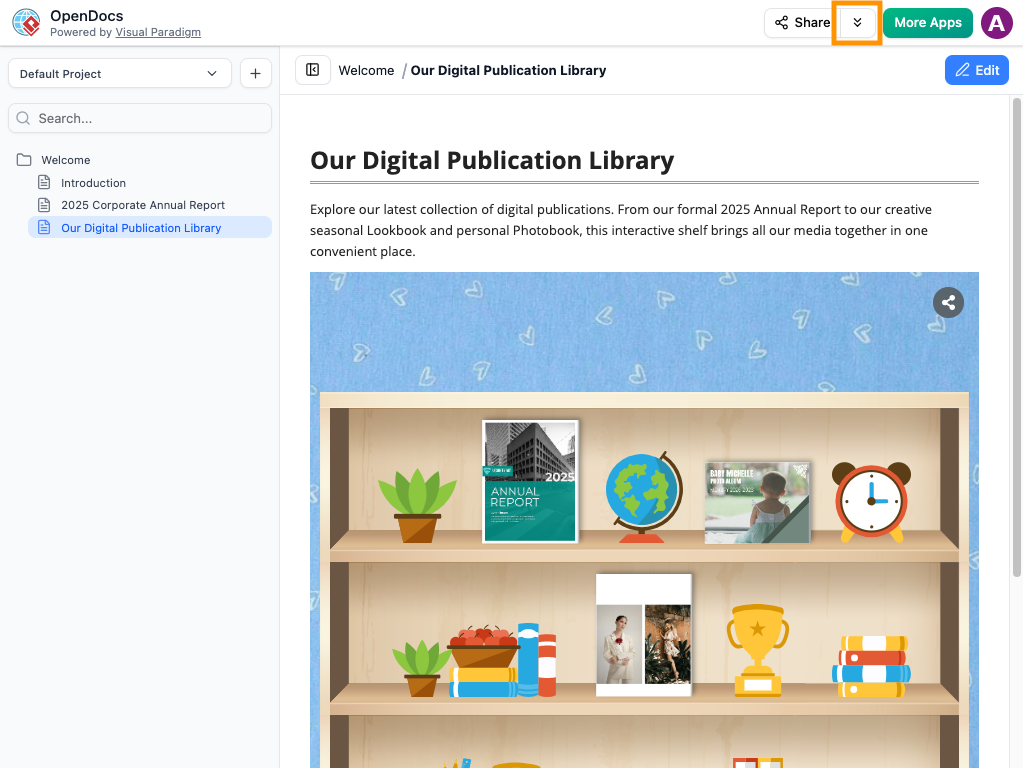
- View History: Look for the Browse Share History option within the sharing interface.
- Review Details: You’ll see a list of all active and past shares, including descriptions, creation dates, and whether shares are “Live” (dynamic) or “Static” (snapshot). Users also note the helpful WordPress page link for documents exported directly to CMS platforms.
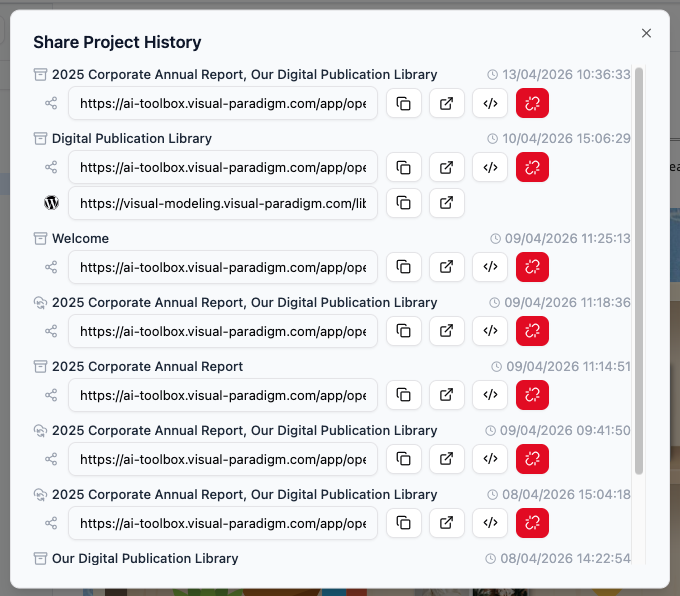
- Manage Links: From this view, quickly copy a URL if a stakeholder loses their link, or grab embed code for existing shares.
 Tip from Power Users: If you use WordPress, you don’t need to copy code manually! Learn more about how to export and publish directly as a WordPress page
Pro Tips from Experienced Users
To maximize value from this knowledge management ecosystem, community members recommend:
- Use Clear Descriptions: When sharing, populate the description field meaningfully (e.g., “Q3 Architecture Review – Live Sync”). This transforms Share History from a log into a searchable reference.
- Schedule Periodic Reviews: Set a monthly reminder to audit Share History, retiring links for completed projects or superseded documentation.
- Combine Pipeline + Share History: Use Pipeline for dynamic artifact sync, and Share History for access governance—creating a robust documentation lifecycle.
Want to explore these features yourself? Visit the OpenDocs feature page to start experimenting.
Conclusion
Visual Paradigm’s Pipeline integration with OpenDocs represents a thoughtful response to a common workflow friction point: keeping visual models and documentation in sync. From a third-party user perspective, the combination of unified artifact transit, real-time synchronization, and AI-assisted creation delivers tangible efficiency gains—particularly for technical teams managing complex, evolving systems. The addition of Browse Share History further strengthens the platform’s utility by adding governance and auditability to the sharing process. While no tool is universally perfect, users report that the learning curve is gentle and the payoff in reduced manual overhead is significant. For organizations invested in living documentation and collaborative knowledge management, this integration merits serious consideration.