


Introduction
Use case diagrams serve as the cornerstone of effective system analysis and requirements engineering, providing a visual representation of how users interact with system functionality. As one of the most powerful tools in the Unified Modeling Language (UML) arsenal, use case diagrams enable stakeholders to understand system behavior from an end-user perspective, bridging the gap between technical teams and business requirements.
Visual Paradigm stands out as a comprehensive solution for creating professional-grade use case diagrams, offering both traditional modeling capabilities and cutting-edge AI-powered features. Whether you’re a business analyst documenting system requirements, a software architect designing application flows, or a developer implementing user interactions, this guide will walk you through every aspect of creating, refining, and optimizing use case diagrams using Visual Paradigm’s robust toolset. From basic diagram creation to advanced AI-driven automation, you’ll discover how to leverage these features to streamline your modeling workflow and produce clear, actionable system documentation.
Creating a Use Case Diagram
Perform the steps below to create a UML use case diagram in Visual Paradigm.
- Select Diagram > New from the application toolbar.
- In the New Diagram window, select Use Case Diagram.
- Click Next.
- Enter the diagram name and description. The Location field enables you to select a model to store the diagram.
- Click OK.
Drawing a System
To create a system in use case diagram, select System on the diagram toolbar and then click it on the diagram pane. Finally, name the newly created system when it is created.
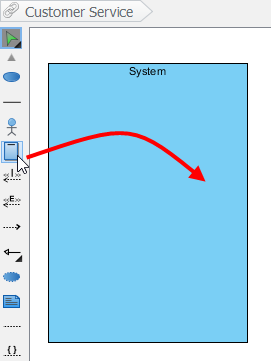 |
|---|
| Create a system |
Drawing an Actor
To draw an actor in use case diagram, select Actor on the diagram toolbar and then click it on the diagram pane. Finally, name the newly created actor when it is created.
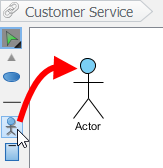 |
|---|
| Create an actor |
Drawing a Use Case
Besides creating a use case through diagram toolbar, you can also create it through Resource Catalog:
- Move the mouse over a source shape (e.g. an actor).
- Press on the Resource Catalog button and drag it out.
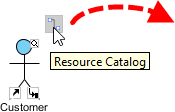
Resource Catalog - Release the mouse button until it reaches your preferred place.
- Select Association -> Use Case from Resource Catalog.
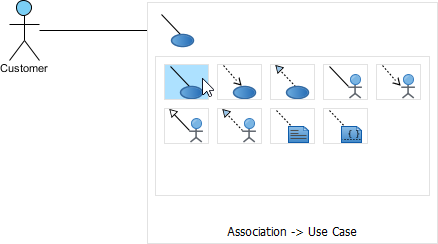
To create a use case - The source shape and the newly created use case are connected. Finally, name the newly created use case.
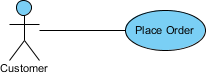
Use Case created
Line Wrapping Use Case Names
If a use case is too wide, you may resize it by dragging the filled selectors for a better outlook. As a result, the name of use case will be line-wrapped automatically.
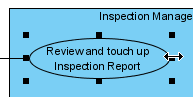 |
|---|
| Resize a use case |
| NOTE: | Alternatively, you can press Alt + Enter to force a new line. |
|---|
Drawing <<extend>> Relationship
To create an extend relationship, move the mouse over a use case, press and drag out its Resource Catalog button. Then, release the mouse button at the preferred place and select Extend -> Use Case from Resource Catalog. The use case with extension points and a newly created use case are connected. After you name the newly created use case, you can name the extension point.
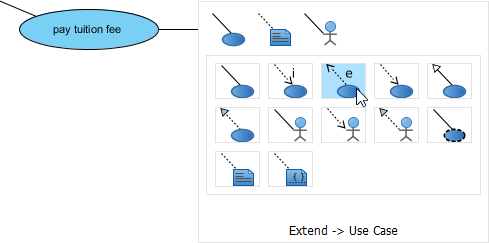 |
|---|
| Create an extend relationship |
Drawing <<include>> Relationship
To create an include relationship, move the mouse over a use case, press and drag out its Resource Catalog button. Then, release the mouse button at the preferred place and select Include -> Use Case from Resource Catalog. A new use case together with an include relationship is created. Finally, name the newly created use case.
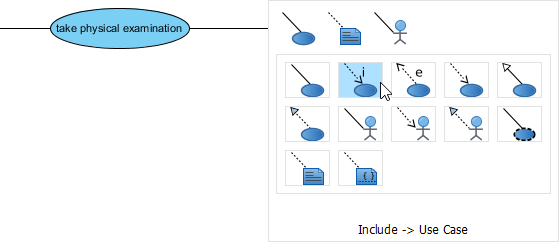 |
|---|
| Include relationship is created |
Structuring Use Cases with Packages
You can organize use cases with package when there are many of them on the diagram.
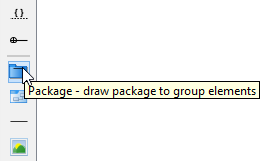
Select Package on the diagram toolbar.
 |
|---|
| Create a package |
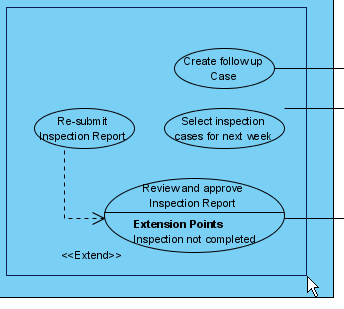
Drag the mouse to create a package surrounding those use cases.
 |
|---|
| Surround use cases with package |
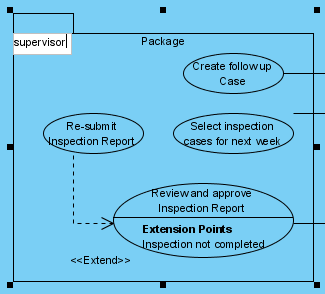
Finally, name the package.
 |
|---|
| Name the package |
Drawing Business Use Cases
The UML diagram tool also supports the representation of business actor and use case. To show an ordinary use case as business use case:
- Right click on a use case and select Model Element Properties > Business Model from the pop-up menu.
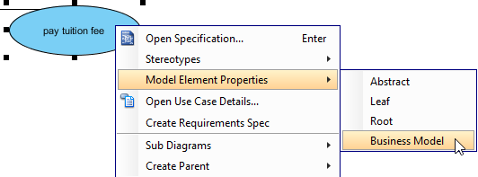
Click Business Model - After selected, an extra slash will be shown on the left edge of the use case.
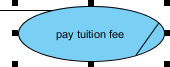
Business Model
Leveraging Visual Paradigm’s AI Ecosystem
Visual Paradigm’s AI Ecosystem represents a revolutionary approach to use case modeling, transforming traditional diagram creation into an intelligent, automated process. This suite of integrated tools automates the transition from natural language descriptions to structured system models and comprehensive documentation.
AI Ecosystem Components
Use Case Modeling Studio: A web-based application that transforms plain language system descriptions into complete models and documentation, serving as an automated assistant for requirements engineering.
AI Chatbot: A cloud-based assistant integrated into the Visual Paradigm Desktop environment that generates diagrams through natural conversation.
UCDD Assistant: The Use Case Driven Development Assistant guides users through the entire lifecycle from problem statement to implementation.
Specialized AI Apps: A library of tools for specific tasks, including the Textual Analysis Tool for identifying domain classes and the ERD Tool for database design.
Key AI-Powered Features
Automated Modeling & Diagramming
- Text-to-Diagram: Instantly generates Use Case, Activity, Sequence, Class, and ER diagrams from a simple goal statement or prompt
- Diagram Refinement: Analyzes existing diagrams to suggest and apply UML relationships like
<<include>>and<<extend>> - Activity Diagram Generator: Specifically maps detailed use case narratives into visual flowcharts
Advanced Requirements Analysis
- AI Use Case Description: Automatically generates structured descriptions including preconditions, postconditions, and standard/alternative/exception flows
- Scenario Analyzer: Converts text-based use cases into structured decision tables and matrices
- Textual Analysis: Pinpoints candidate domain classes, attributes, and operations from problem statements
Documentation & Testing
- AI-Powered Test Case Creation: Produces detailed test scenarios, steps, and expected results directly from use case specifications
- Automated SDD Reporting: Assembles scope, models, and test cases into professional Software Design Documents (PDF or Markdown) with one click
- Gherkin Scenario Generation: Converts flows into Gherkin format for automated QA and acceptance testing
Integration & Workflow
- Desktop & Web Sync: Features created in the VP Online workspace can be imported into Visual Paradigm Desktop for further modeling
- Interactive Dashboard: Provides a real-time overview of project health, including description completeness and diagram coverage
Conclusion
Mastering use case diagrams in Visual Paradigm equips you with a powerful methodology for capturing, analyzing, and communicating system requirements effectively. From the fundamental steps of creating actors and use cases to establishing complex relationships through <> and <> connectors, Visual Paradigm provides an intuitive interface that accommodates both novice modelers and experienced architects.
The introduction of AI-powered features represents a paradigm shift in use case modeling, dramatically reducing the time required to transform conceptual requirements into professional-grade diagrams and documentation. Whether you choose to work with traditional manual modeling techniques or leverage the automated capabilities of the AI Ecosystem, Visual Paradigm delivers the flexibility and power needed to produce clear, comprehensive use case models that serve as the foundation for successful software development projects.
By following the techniques outlined in this guide and exploring the advanced AI capabilities, you’ll be well-positioned to create use case diagrams that not only meet UML standards but also facilitate better communication among stakeholders, reduce ambiguity in requirements, and ultimately contribute to the delivery of higher-quality software systems.
Related posts:
 🚀 The Ultimate Guide to AI-Powered Use Case Diagrams with Visual Paradigm
 Generate Deployment Diagrams with Visual Paradigm AI Chatbot: A Step-by-Step Guide
 Mastering Use Case Diagrams: From Traditional UML Modeling to AI-Powered System Design
 Transforming Requirements Engineering: A Complete Guide to Visual Paradigm’s AI-Powered Use Case Modeling Ecosystem