
Introduction
Use case modeling stands as one of the most powerful techniques in requirements engineering, bridging the gap between stakeholder needs and technical implementation. Whether you’re designing a new enterprise system, refining an existing application, or documenting user interactions for compliance, well-documented use cases provide the foundation for successful software delivery.
Visual Paradigm has long been recognized as a leading platform for UML modeling, offering comprehensive tools for creating, managing, and refining use case specifications. Today, Visual Paradigm elevates this capability further by integrating intelligent AI-powered features that accelerate modeling workflows while maintaining the precision and control that professional teams require.
This comprehensive guide walks you through the complete process of documenting use case details in Visual Paradigm—from opening the Use Case Details dialog to managing sub-diagrams, linking requirements, and authoring test plans. We’ll explore both traditional manual workflows and the transformative AI-powered capabilities that can generate candidate use cases, suggest relationships, and auto-populate specifications in seconds. Whether you’re a business analyst, product manager, or systems architect, you’ll discover practical techniques to capture meaningful use case information
efficiently and collaboratively.
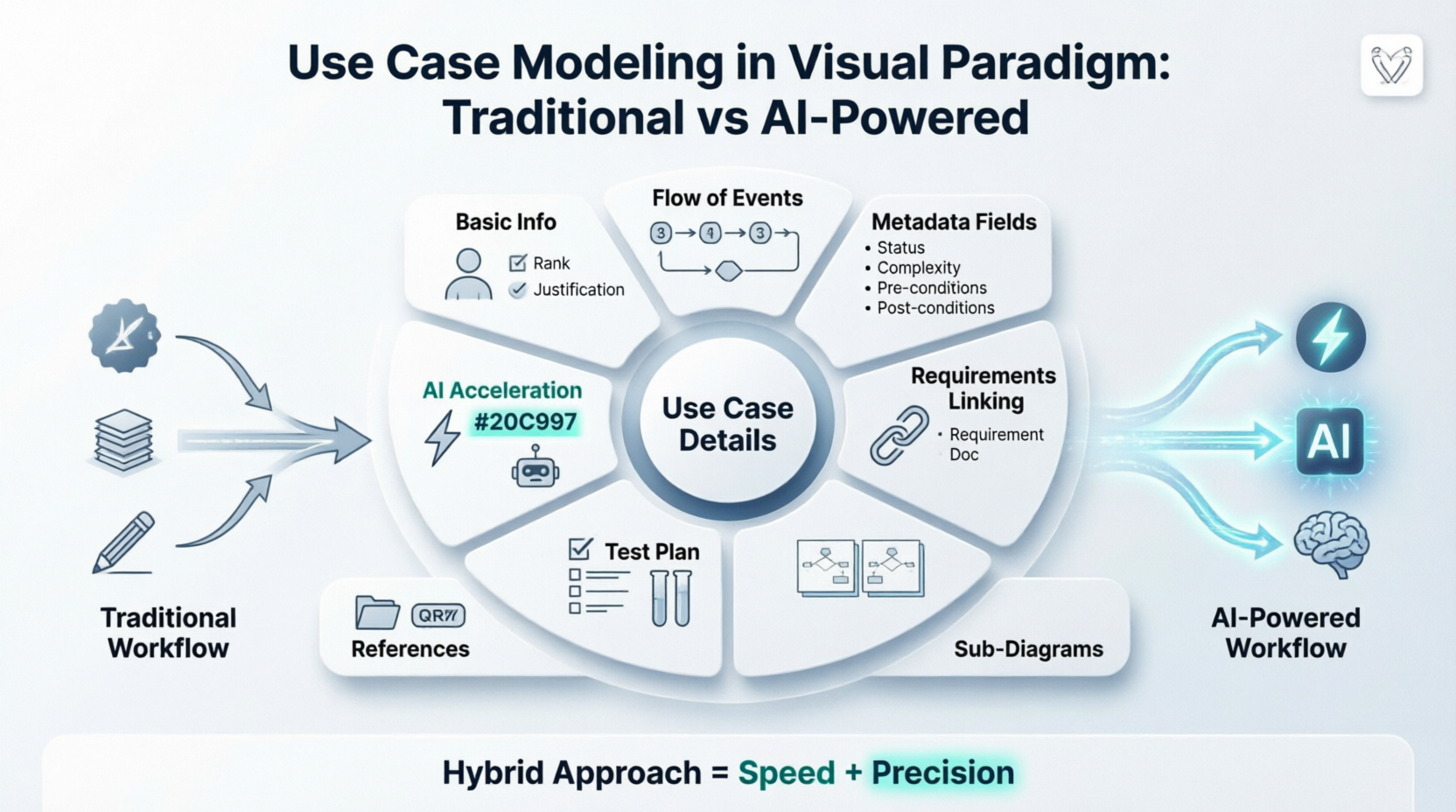
Opening Use Case Details
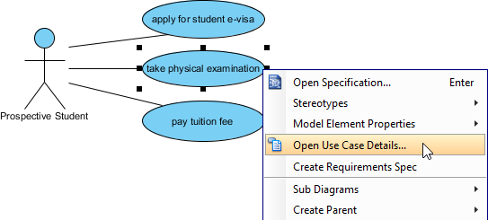
To start editing and viewing use case details, right click on the target use case in use case diagram and select Use Case Details… from the pop-up menu.
 |
|---|
| Select Open Use Case Details… |
This centralized dialog serves as your command center for all use case documentation, organizing information into intuitive tabs that support both quick edits and deep specification work.
Entering Basic Information
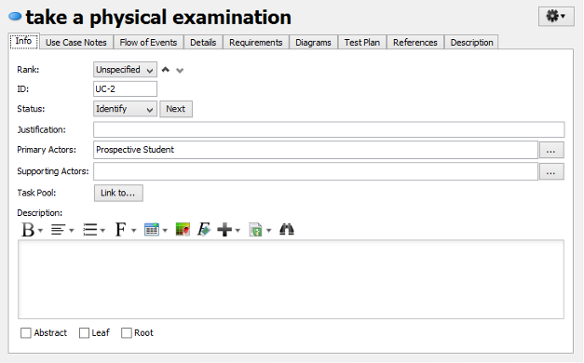
Basic information refers to all general information of a use case. Rank and justification determine the importance of a use case. Select a rank from the drop-down menu and enter the text in Justification text field.
Primary actors list the actors being involved in a use case. Actors that are connected to a use case are automatically defined as primary actors. Supporting Actors are actors who are beneficial from the system but without direct interaction. Both primary and supporting actors can be added manually by pressing the Plus button and select the actors in the pop-up window.
 |
|---|
| Basic information of use case |
💡 AI Enhancement: Visual Paradigm’s AI can suggest primary and supporting actors based on your project scope and problem description, reducing manual identification effort and helping ensure no critical stakeholder is overlooked.
Entering Flow of Events
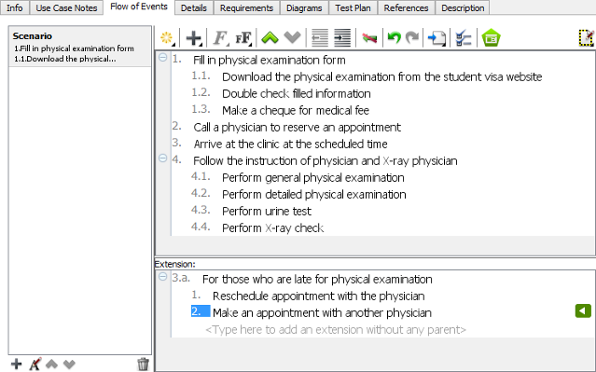
Flow of events refers to the steps required to go through and fulfill a use case. You may define multiple flows of events under a use case and add extension to an event as well.
 |
|---|
| Flow of events of use case |
Traditional Workflow
-
Manually author the main success scenario step-by-step
-
Define alternative flows for exception handling
-
Link extension points to <> relationships
AI-Powered Acceleration
Visual Paradigm’s AI Description Generator can transform a simple problem statement into a structured flow of events. [[26]] Simply describe the use case goal in natural language, and the AI will:
-
Generate a logical sequence of user-system interactions
-
Suggest alternative paths and error conditions
-
Format content according to industry-standard use case templates
-
Export results directly to PlantUML for version-controlled documentation [[5]]
Entering Details
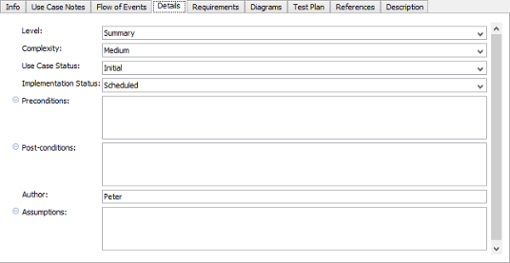
Details are predefined and detailed fields of a use case, which includes level, complexity, status, implementation status, preconditions and post-conditions, author and assumptions. Select an option for Level, Complexity, Use Case Status and Implementation Status from the drop-down menu.
 |
|---|
| Details of use case |
These metadata fields enable traceability, prioritization, and progress tracking across your requirements lifecycle. Use them to:
-
Filter use cases by implementation status during sprint planning
-
Identify high-complexity items requiring additional design effort
-
Document assumptions that may impact downstream testing
Inserting Requirement Links
-
Click in the text field where you want to insert a requirement link. Click the Insert Requirement… button when it pops out. Note that only fields which support multiple line are allowed to add requirement links.
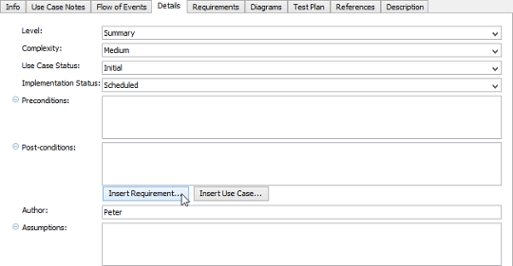
Click Insert Requirement… button -
When the Select Requirement window pops out, select the requirement you want to link to and click OK to confirm. The searching scope of selecting requirement may be narrowed down if you find too many requirements in your project. Select a specific diagram from the drop-down menu at the top-left corner of window or enter its name at the Filter field directly at the top right corner.

Select a requirement -
Once the link is inserted in the text field, you can right click to navigate it through its pop-up menu.
🔗 Traceability Benefit: These bidirectional links ensure that changes to requirements automatically flag affected use cases, supporting impact analysis and regulatory compliance.
Adding Requirements
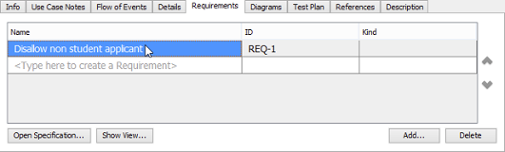
Requirements of a use case can be added in the Requirements page.
 |
|---|
| Requirements of use case |
To add requirement(s) to a use case:
-
Click the Add… button at the bottom right of window.
-
In the Requirements window, look for and select the requirements to add and click OK to confirm the selection.
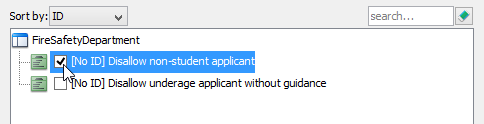
Select a requirement NOTE: The Requirements page is for adding existing requirements as requirements. If you want to define a new requirement, read the next section Adding a sub-diagram. Information about how to add a requirement diagram as sub-diagram and define the requirements in the diagram is provided. Requirements which are made in Diagrams page will be automatically added to the use case’s requirements.
Managing Sub-Diagrams
You can make use of another diagram for elaborating a use case. The Diagrams page enables you to add and open sub-diagrams of a use case. When you select a diagram on the list on the left, you may preview it on the right if Show preview is checked.
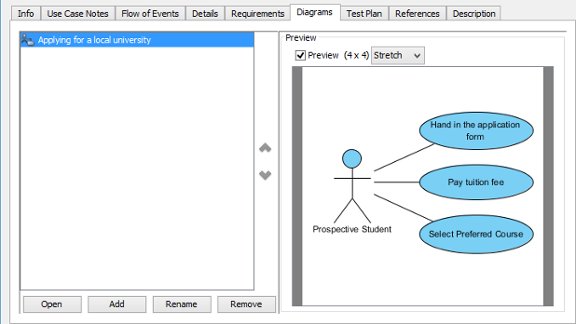 |
|---|
| Diagrams of use case |
Adding a Sub-Diagram
-
Click the Add button at the bottom of Diagrams page, select a type of diagram from the pop-up menu if you want to add a new diagram as sub-diagram. On the other hand, select Add Existing Diagrams… if you want to add an existing diagram in your current project.
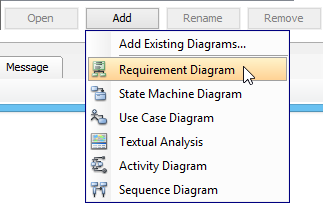
Add a sub-diagram
Opening a Sub-Diagram
Select a sub-diagram on the list to open and click the Open button at the bottom of Diagrams page.
🎨 Common Sub-Diagram Types:
Activity Diagrams: Model the workflow logic within a use case
Sequence Diagrams: Detail message exchanges between actors and system components
State Machine Diagrams: Capture complex state-dependent behavior
Class Diagrams: Define the data structures supporting the use case
Writing Test Plan
While the detailed testing procedure can be documented in flow of events, the testing setup and configurations can be documented in the Test Plan tab.
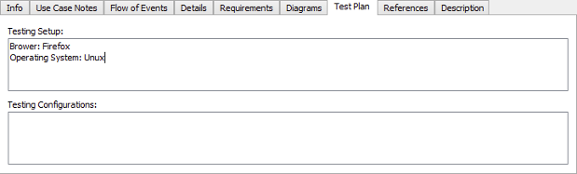 |
|---|
| Test Plan of use case |
Use this section to specify:
-
Test environment prerequisites
-
Test data requirements
-
Acceptance criteria aligned with use case goals
-
Links to automated test scripts or test case repositories
Visual Paradigm’s AI can also assist in generating initial test scenarios based on your flow of events, helping QA teams start validation earlier in the lifecycle. [[7]]
Adding References
You may add references to both internal and external artifacts, such as shapes, diagrams, files, folders and URLs for describing the use case in various views.
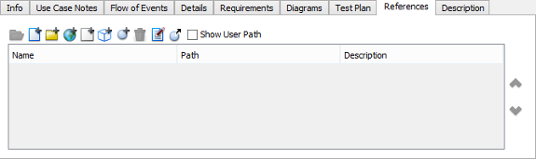 |
|---|
| References of use case |
References create a rich knowledge network around each use case, enabling:
-
Quick access to related business rules or policy documents
-
Navigation to wireframes, mockups, or prototype links
-
Integration with external requirement management tools via URL references
AI-Powered Use Case Modeling: Accelerating the Traditional Workflow
Visual Paradigm’s AI ecosystem transforms use case modeling from a manual documentation exercise into an intelligent, collaborative design process. [[1]] Here’s how AI capabilities complement traditional workflows:
🚀 AI Use Case Generation
Describe your system in natural language, and Visual Paradigm’s AI engine instantly generates candidate use cases, actors, and relationships. [[21]] The AI draws on UML best practices and domain patterns to propose:
-
Appropriately scoped use case names (verb + noun format)
-
Logical actor-role assignments
-
Suggested <> and <> relationships for reuse
🤝 Conversational Refinement via AI Chatbot
Use the integrated AI Chatbot to iteratively refine your model through dialogue. [[6]] Ask questions like:
-
“What alternative flows should I consider for the ‘Process Payment’ use case?”
-
“Suggest preconditions for the ‘Authenticate User’ scenario”
-
“Help me split this overly complex use case into manageable pieces”
🔄 Automated Relationship Intelligence
The AI Refinement Tool analyzes your use case list and automatically suggests:
-
Common behaviors that could be extracted as <> use cases
-
Optional extensions suitable for <> relationships
-
Generalization opportunities where use cases share inheritance patterns [[18]]
📊 One-Click Visualization
With a single click, transform your text-based use case list into a professional Use Case Diagram that visually communicates system boundaries and actor interactions. [[3]] This instant visualization helps stakeholders validate scope and identify gaps early.
📄 Intelligent Documentation Generation
After modeling, use the AI Report Generator to produce structured Markdown documentation, PlantUML code, or formal Software Design Documents (SDD) directly from your diagrams. [[8]] This ensures consistency between visual models and textual specifications.
💡 Best Practice: Start with AI-assisted generation to overcome blank-page syndrome, then apply traditional refinement techniques to inject domain expertise and stakeholder feedback. The combination delivers both speed and precision.
Traditional vs. AI-Powered: Choosing the Right Approach
| Aspect | Traditional Workflow | AI-Powered Enhancement |
|---|---|---|
| Use Case Identification | Manual brainstorming sessions; risk of omissions | AI suggests candidates based on scope & stakeholder map; human validates & prioritizes |
| Flow of Events Authoring | Step-by-step manual writing; time-intensive | AI drafts initial scenarios from natural language prompts; analyst refines edge cases |
| Relationship Modeling | Analyst manually identifies <>/<> opportunities | AI analyzes use case content and proposes reusable relationships |
| Diagram Creation | Drag-and-drop modeling; requires UML proficiency | One-click diagram generation from text; AI applies layout best practices |
| Documentation Output | Manual report assembly; formatting inconsistencies | AI generates standardized reports, PlantUML, or SDDs with consistent structure |
| Collaboration | Comments and reviews within tool | AI Chatbot enables conversational refinement; real-time suggestion sharing |
✅ Hybrid Recommendation: Leverage AI for rapid prototyping and initial structure, then apply traditional modeling discipline for validation, stakeholder alignment, and final specification. This approach maximizes productivity without sacrificing quality.
Conclusion
Documenting use case details is far more than filling out forms—it’s about capturing the essential dialogue between users and systems in a way that drives shared understanding, guides development, and enables rigorous validation. Visual Paradigm provides a robust, flexible environment for this critical work, supporting both meticulous traditional modeling and intelligent AI-assisted acceleration.
By mastering the Use Case Details dialog—from basic information and flow of events to requirements linking, sub-diagram management, and test planning—you establish a single source of truth for functional requirements. When enhanced with Visual Paradigm’s AI capabilities, this process becomes dramatically more efficient: generating candidate use cases in seconds, suggesting optimal relationships, and producing publication-ready documentation with minimal manual effort. [[4]]
Whether you prefer the deliberate control of manual modeling or the velocity of AI-powered generation, Visual Paradigm adapts to your workflow. The result is clearer requirements, stronger stakeholder alignment, and software that truly delivers on user goals. Start with the fundamentals covered in this guide, experiment with AI features on a pilot project, and evolve your use case practice to meet the demands of modern software delivery.
References
- What is Use Case Diagram? – An introductory guide to Use Case Diagram: A foundational article explaining use case diagram concepts, notation, relationships (include/extend/generalization), and practical tips for effective modeling in UML.
- New to Visual Paradigm? We have a lot of UML tutorials written to help you get started with Visual Paradigm: A curated collection of beginner-friendly tutorials covering UML diagram types, modeling techniques, and Visual Paradigm tool navigation to accelerate onboarding.
- Visual Paradigm on YouTube: Official video channel featuring product demos, feature walkthroughs, modeling best practices, and webinar recordings to support visual learning.
- Visual Paradigm Know-How – Tips and tricks, Q&A, solutions to users’ problems: A community-driven knowledge base offering practical solutions, troubleshooting guidance, and expert advice for common Visual Paradigm challenges.
- AI-Powered Use Case Modeling Studio Release: This announcement introduces a specialized studio designed to enhance use case modeling and software design workflows using artificial intelligence.
- AI Use Case Description Generator by Visual Paradigm: An AI-powered tool that generates detailed use case descriptions from user input to accelerate the documentation phase.
- Master AI-Driven Use Case Diagrams: A Short Tutorial: A concise tutorial on using AI to create, refine, and automate the development of use case diagrams.
- Generating Scenarios and Test Cases from Use Case Diagrams Using AI: This comprehensive guide explains how to use AI tools to automatically generate test scenarios and cases directly from use case diagrams.
- Revolutionizing Use Case Elaboration with Visual Paradigm AI: This article discusses how AI streamlines the elaboration process by automating documentation and improving system design clarity.
- AI PlantUML Use Case Diagram Report Generator: A tool that generates detailed, text-based reports from PlantUML use case diagrams through the automated analysis of actors and use cases.
- Automating Use Case Development with AI in Visual Paradigm: This resource highlights an AI-powered tool that creates consistent use case documents directly from diagrams.
- Convert Use Case Diagrams to Activity Diagrams with Visual Paradigm: This feature overview describes how to automatically transform use case diagrams into detailed activity diagrams using intelligent modeling.
- A Manager’s Guide to Clear Project Planning: AI-Driven Use Case Insights: This article provides insights on using AI-driven use case analysis to support better project planning and managerial decision-making.
- AI-Powered Use Case Diagram Refinement Tool: A smart modeling tool that enhances use case diagrams for improved clarity and completeness by suggesting enhancements and identifying missing actors.