
Introduction
In today’s fast-paced digital workplace, knowledge shouldn’t live in silos. Teams need instant access to documentation, diagrams, and processes exactly where they work—whether that’s a company intranet, a client portal, or a public-facing WordPress site. Visual Paradigm OpenDocs transforms this vision into reality with its powerful Embed Code feature, allowing you to seamlessly integrate rich, interactive knowledge bases directly into your website.
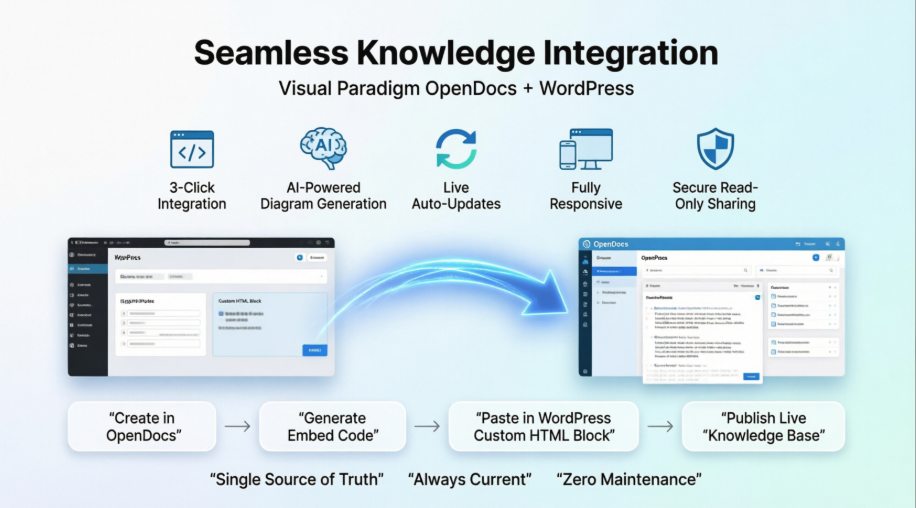
This comprehensive guide walks you through embedding OpenDocs content into WordPress, explains why this approach stands out in the crowded knowledge management market, and provides actionable steps to publish and sync your team’s knowledge in minutes—not days. Whether you’re managing internal SOPs, public technical documentation, or collaborative project dashboards, OpenDocs + WordPress delivers a unified, professional experience that keeps your audience engaged and informed.
What is Embedded Content?
Embedding allows you to display your OpenDocs pages directly inside another web page using an “iframe.” Instead of sending users away to a different URL, they can browse your diagrams, process models, and documentation without ever leaving your company portal or internal site.
How to Get Your Embed Code
Once you have selected your pages and chosen your sharing mode (Static or Live), generating the code takes just a few clicks:
-
Generate the Share Link: After clicking “Share” in the main dialog, you will see a summary box containing your share URL.
-
Open the Embed Dialog: Next to the URL, you will see three icons. Click the Embed Code icon (represented by the
</>symbol).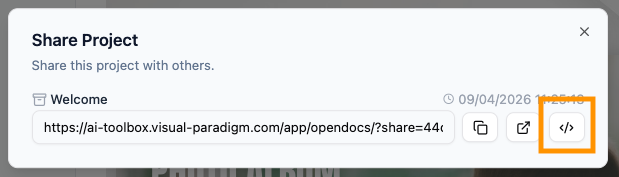
-
Copy the Code: A new window will appear showing a block of HTML code starting with
<iframe...>. Simply click the Copy Embed Code button at the bottom.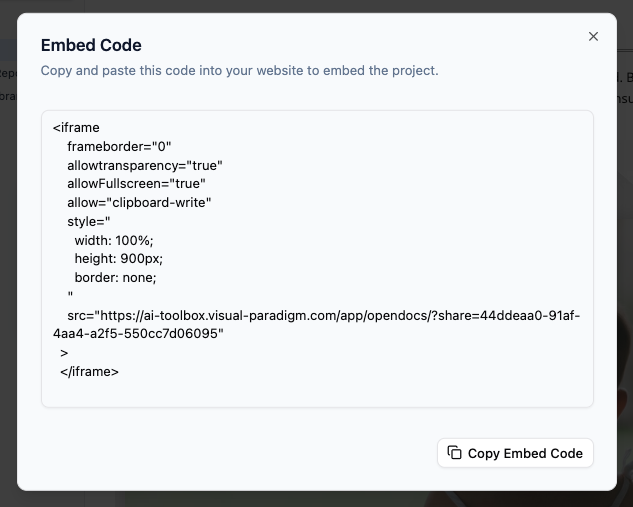
-
Paste into Your Site: Go to your website’s editor (like WordPress, a company wiki, or a custom CMS) and paste the code into the HTML or “Custom HTML” block.
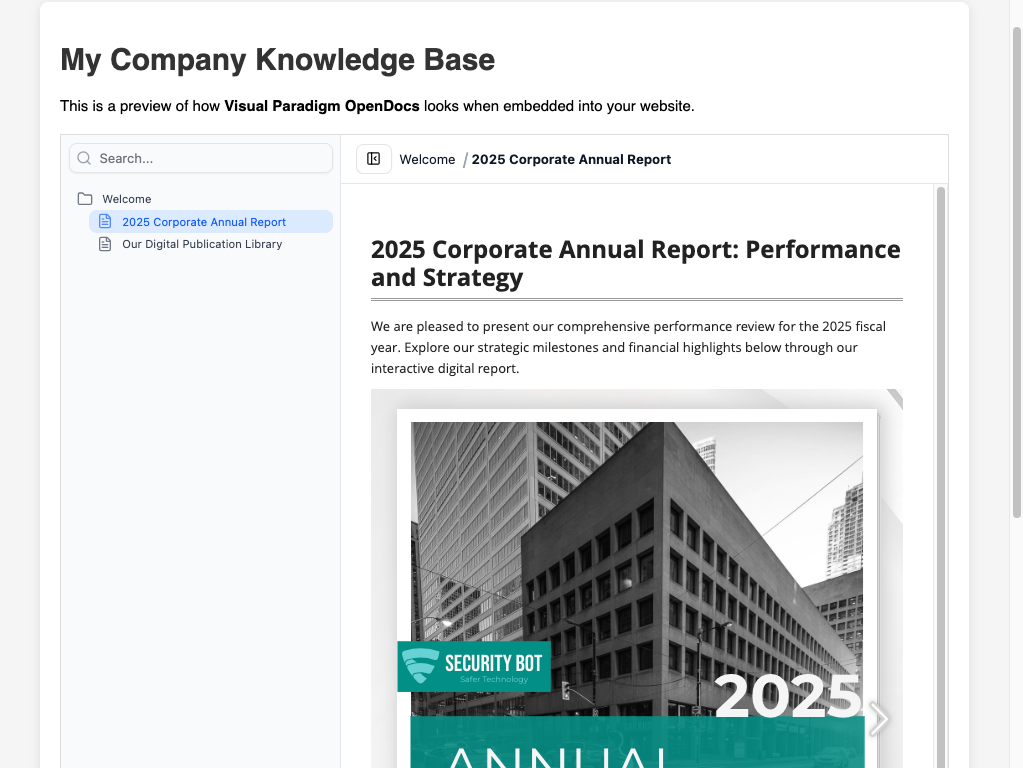
WordPress-Specific Integration Guide: Publish & Sync in Minutes
WordPress powers over 43% of the web—and for good reason. Its flexibility, plugin ecosystem, and user-friendly editor make it the ideal platform for embedding dynamic knowledge bases. Here’s how to quickly integrate OpenDocs into your WordPress site:
Step 1: Prepare Your OpenDocs Content
-
Organize your knowledge using OpenDocs’ hierarchical Knowledge Tree
-
Choose Live Sync mode if you want embedded content to auto-update when source diagrams change
-
Generate your embed code following the steps above
Step 2: Add to WordPress Using the Block Editor (Gutenberg)
-
Navigate to the page or post where you want to embed content
-
Click the + button to add a new block
-
Search for and select Custom HTML
-
Paste your copied
<iframe>embed code directly into the block -
Click Preview to verify the content displays correctly
-
Publish or update your page
Step 3: Optimize for Responsiveness & Performance
-
OpenDocs embeds are fully responsive by default, but you can fine-tune the iframe dimensions in the embed code:
<iframe src="YOUR_OPENDOCS_LINK" width="100%" height="600px" style="border:none; min-height:400px;"> </iframe> -
For advanced users: Use a plugin like Iframe Resizer to dynamically adjust height based on content
-
Leverage WordPress caching plugins (e.g., WP Rocket, W3 Total Cache) to ensure fast load times without compromising live sync functionality
Step 4: Manage Access & Permissions
-
Use OpenDocs’ secure, read-only sharing links to control who can view embedded content
-
For internal WordPress sites: Combine with membership plugins (e.g., MemberPress, Restrict Content Pro) to restrict access to authorized team members
-
For public documentation: Keep content publicly accessible while maintaining edit control within OpenDocs
Step 5: Automate Sync with the OpenDocs Pipeline
-
Connect Visual Paradigm Desktop or Online to OpenDocs via the Pipeline feature
-
When diagrams are updated in your modeling tool, changes automatically propagate to your embedded WordPress content
-
No manual re-uploading, no version confusion—just always-current documentation
Why Use Embedding? Real-World Use Cases
Using a knowledge management tool that supports embedding helps maintain a professional and unified brand experience. Here are a few ways our users are using it:
-
Internal Employee Portals: Keep your standard operating procedures (SOPs) visible directly on your company intranet.
-
Project Dashboards: Embed specific project branches into project management tools so the team always sees the latest updates.
-
Public Documentation: Show technical guides directly on your product’s landing page while managing the content behind the scenes in OpenDocs.
Note: Because OpenDocs handles the heavy lifting, your embedded content is fully responsive. Whether your readers are on a desktop or a tablet, the knowledge base will scale to fit the space you provide.
Why OpenDocs + WordPress Stands Out in the Market
In a landscape crowded with static wikis, disconnected diagram tools, and rigid documentation platforms, the OpenDocs + WordPress combination delivers unique advantages:
🔄 True Live Sync, Not Just Static Embeds
Unlike tools that embed PDFs or screenshots, OpenDocs supports Live Mode embedding. When your team updates a diagram in Visual Paradigm, the embedded content in WordPress reflects those changes instantly—no manual exports, no broken links.
🤖 AI-Powered Content Creation at Scale
OpenDocs isn’t just a viewer—it’s an AI-powered knowledge engine. Use the AI Diagram Generator to turn natural language descriptions into professional UML, flowcharts, or ERDs in seconds, then embed them directly into your WordPress site. This dramatically reduces the time from idea to published documentation.
🧩 Unified Visual + Text Workflow
Most knowledge bases force you to choose between rich text OR diagrams. OpenDocs integrates both in a single Markdown editor with a built-in diagram canvas. Embed the entire experience—not just fragments—into WordPress for a cohesive reader journey.
🔐 Enterprise-Grade Security with Simple Sharing
Share complex technical documentation with clients, partners, or internal teams via secure, permission-controlled embeds. No software installation required for viewers—just a browser. Perfect for WordPress sites serving diverse audiences.
🌐 Cloud-Native, Zero Maintenance
Because OpenDocs is fully browser-based and cloud-hosted, your WordPress site doesn’t bear the burden of storing large diagram files or managing version history. All heavy lifting happens on Visual Paradigm’s infrastructure, keeping your site fast and reliable.
📱 Responsive by Design
Every embed automatically adapts to mobile, tablet, and desktop viewports. No extra CSS tweaking required—your WordPress site stays beautiful across all devices.
Conclusion: Transform Your WordPress Site into a Dynamic Knowledge Hub
Embedding Visual Paradigm OpenDocs into your WordPress website isn’t just a technical upgrade—it’s a strategic advantage. By bringing AI-powered diagrams, live-sync documentation, and structured knowledge trees directly into the platforms your team and customers already use, you eliminate friction, reduce context-switching, and ensure everyone works from a single source of truth.
Whether you’re documenting enterprise architecture, onboarding new hires, or publishing public API guides, the OpenDocs + WordPress workflow delivers speed, clarity, and professionalism that static documentation simply can’t match. With just a few clicks to generate an embed code, you can transform any WordPress page into an interactive, always-up-to-date knowledge experience.
Ready to integrate your knowledge? Visit our knowledge management platform details page and start embedding today.
References
-
Visual Paradigm OpenDocs: The Complete Guide to AI-Powered Knowledge Management and Diagram Generation: A comprehensive walkthrough of OpenDocs’ core capabilities, including AI diagram generation, knowledge tree organization, and enterprise deployment strategies.
-
OpenDocs Features Overview: Official feature breakdown from Visual Paradigm covering Markdown editing, diagram support, collaboration tools, and cloud accessibility.
-
Visual Paradigm OpenDocs: The Complete Developer’s Guide to AI-Powered Technical Documentation: Developer-focused guide detailing syntax highlighting, code block integration, API documentation workflows, and technical use cases.
-
OpenDocs Platform Details: Official product page with pricing, feature comparisons, and direct access to start using the AI-powered knowledge management platform.
-
Harnessing Visual Paradigm’s AI for Diagram Generation: The Ultimate 2026 Guide: In-depth exploration of AI diagram creation capabilities, prompt engineering tips, and best practices for automating visual documentation.
-
AI Flowchart Generator: OpenDocs Update: Release notes detailing the new AI-powered flowchart generation feature, including use cases and integration workflows.
-
Sync AI Diagram to OpenDocs Pipeline Guide: Step-by-step tutorial for setting up the OpenDocs Pipeline to automatically sync diagrams from Visual Paradigm Desktop/Online to your knowledge base.
-
From Idea to Enterprise: My Journey Through Visual Paradigm’s Four AI Pillars: Personal case study exploring how Visual Paradigm’s AI features—including OpenDocs—scale from individual projects to enterprise knowledge management.
-
OpenDocs Professional: Mind Map Integration Update: Announcement of professional-grade mind mapping tools within OpenDocs, including embedding and collaboration enhancements.
-
New in OpenDocs: AI-Powered Data Flow Diagram (DFD) Support: Feature release detailing AI-assisted DFD creation, editing capabilities, and integration with technical documentation workflows.
-
AI Component Diagram Generator: OpenDocs Update: Update covering the new AI tool for generating software architecture component diagrams, with examples and embedding use cases.