
Now Reading: Generate Deployment Diagrams with Visual Paradigm AI Chatbot: A Step-by-Step Guide
-
01
Generate Deployment Diagrams with Visual Paradigm AI Chatbot: A Step-by-Step Guide


Generate Deployment Diagrams with Visual Paradigm AI Chatbot: A Step-by-Step Guide
Creating deployment diagrams can be a time-consuming part of system design—especially when you’re learning or need to quickly visualize infrastructure. With the Visual Paradigm AI Chatbot, you can generate accurate, professional deployment diagrams in seconds, simply by describing your system in plain language.
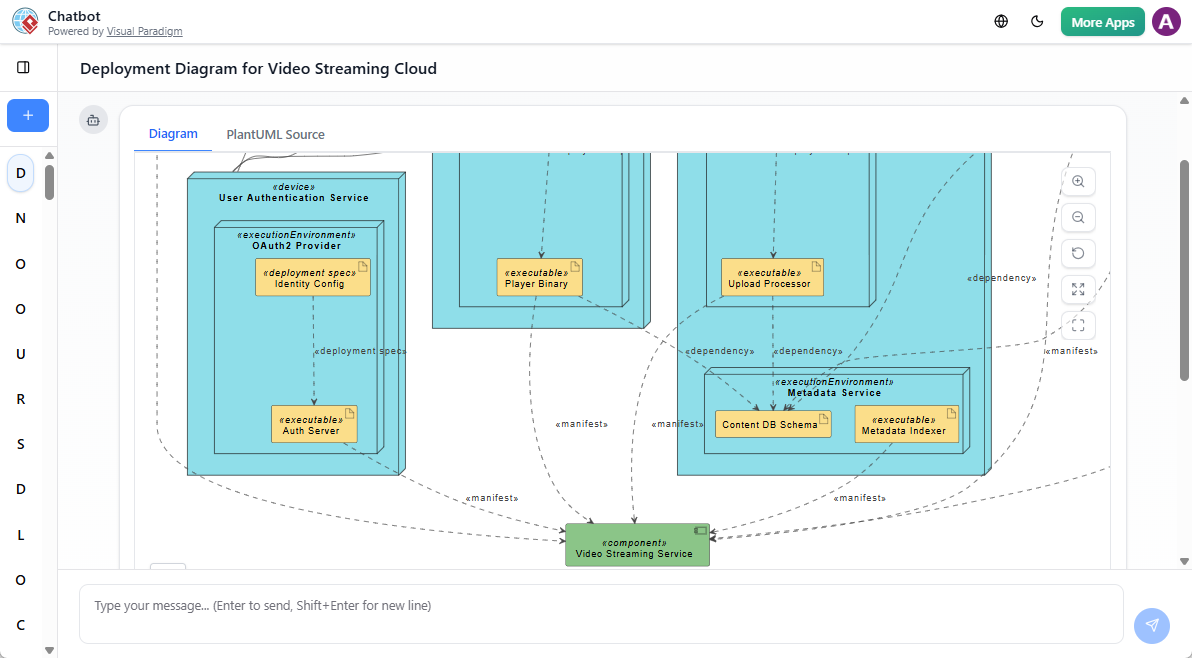
Whether you’re a developer, architect, or student, this guide walks you through how to use the AI Chatbot to create deployment diagrams efficiently—without needing to memorize syntax or navigate complex tools.
What Is a Deployment Diagram?
A deployment diagram in UML illustrates the physical architecture of a system. It shows how software components are distributed across hardware nodes (like servers, devices, or cloud instances), including their relationships and communication paths.
Common use cases:
-
Visualizing a web application’s infrastructure
-
Planning cloud deployments (AWS, Azure, GCP)
-
Documenting on-premise vs. hybrid environments
-
Supporting system documentation and onboarding
Traditionally, building these diagrams requires manual layout, careful naming, and deep knowledge of UML conventions. The AI Chatbot removes that friction.
Why Use the AI Chatbot for Deployment Diagrams?
Instead of starting from scratch in a diagramming tool, the AI Chatbot lets you:
-
Describe your system in natural language
-
Get a fully rendered deployment diagram instantly
-
Iterate and refine the design through conversation
-
Export or import into Visual Paradigm for further editing
This is especially helpful for:
-
Students learning system architecture
-
Developers prototyping cloud setups
-
Architects documenting production environments
-
Teams aligning on infrastructure plans
Step-by-Step: How to Generate a Deployment Diagram
Step 1: Open the Visual Paradigm AI Chatbot
Launch the AI Chatbot from your Visual Paradigm Desktop or Online environment. You’ll see a clean chat interface with a welcome screen and suggested prompts.
💡 Tip: If you’re new, try the “Create a deployment diagram” suggestion to get started quickly.
Step 2: Describe Your System in Plain Language
Type a clear, descriptive request. The more specific, the better the output.
Example 1 (Cloud-based app):
“Generate a deployment diagram for a cloud-hosted e-commerce platform using AWS. Include a web server, application server, database instance, and a load balancer.”
Example 2 (Hybrid setup):
“Create a deployment diagram for a healthcare application with a front-end hosted on AWS, a backend running on-premise, and a database in Azure. Show the communication flow.”
The AI will:
-
Identify the components (nodes and artifacts)
-
Determine the relationships (dependencies, communication)
-
Apply UML standards correctly
-
Render a clean, readable diagram directly in the chat
Step 3: Review and Refine the Diagram
Once generated, you’ll see the diagram in the chat window. It’s interactive—click to expand details or hover for tooltips.
You can now ask follow-up questions to adjust the diagram:
-
“Add a Redis cache server in front of the database.”
-
“Change the web server to use Docker containers.”
-
“Label the communication path between the app server and database as ‘HTTPS’.”
-
“Show the physical location of each node (e.g., ‘US-East-1’ for AWS).”
Each request updates the diagram in real time, allowing you to explore different configurations without switching tools.
Step 4: Export or Import for Further Work
While the chat interface is great for rapid ideation, you may need to refine the diagram further.
For licensed users:
-
Click the Import to Visual Paradigm button (available for supported diagram types).
-
The diagram is automatically imported into your Visual Paradigm project.
-
You can now:
-
Add more nodes or artifacts
-
Apply custom styling
-
Generate documentation
-
Share with team members
-
🔗 Pro Tip: Use the Share feature to send a link to your diagram to colleagues. They can view the full conversation and visual without needing an account.
Real-World Use Cases
1. Onboarding New Developers
Instead of explaining infrastructure in a document, generate a deployment diagram in 30 seconds and share it with the team.
“Here’s how our microservices are deployed across AWS regions.”
2. Designing a CI/CD Pipeline
Describe a pipeline with staging, production, and test environments.
“Create a deployment diagram for a CI/CD setup with GitHub Actions, a staging server, and a production cluster.”
The AI renders it instantly, showing how artifacts move between environments.
3. Preparing for an Architecture Review
Use the chatbot to draft a diagram that shows your proposed deployment before presenting it.
“Show a hybrid deployment with mobile app clients, a cloud API, and an on-premise data warehouse.”
You can refine it during the meeting based on feedback.
Best Practices for Better Results
-
Be specific about nodes and connections. Instead of “a server,” say “a Linux VM running Node.js.”
-
Mention cloud providers (AWS, Azure, GCP) or on-premise systems for accurate modeling.
-
Use real-world terms like “load balancer,” “database cluster,” or “edge device.”
-
Iterate gradually. Build the diagram in stages: first the structure, then the communication paths.
-
Use context in follow-ups. Reference earlier parts: “Add a firewall between the web server and app server.”
Supported Diagram Types and Integration
The AI Chatbot supports multiple UML diagram types, including:
-
Deployment Diagrams (primary focus here)
-
Component Diagrams
-
Sequence Diagrams
-
Class Diagrams
For deployment diagrams, the AI is trained to recognize:
-
Hardware nodes (servers, routers, mobile devices)
-
Software artifacts (containers, WAR files, Docker images)
-
Communication links (HTTP, TCP, MQTT)
-
Cloud service mappings (AWS EC2, Azure Blob Storage)
When you import the diagram into Visual Paradigm, you retain full editing control—perfect for formal documentation or team collaboration.
What You Can’t Do (And Why It’s OK)
The AI Chatbot is not a replacement for deep architectural design—but it’s a powerful assistant for rapid prototyping and learning.
Limitations to keep in mind:
-
It doesn’t replace the need for domain expertise.
-
Complex dependencies or custom constraints may require manual validation.
-
Diagrams are generated based on training data and may occasionally include plausible but incorrect details.
Always verify critical infrastructure decisions with your team and documentation.
Final Thoughts
Generating deployment diagrams with the Visual Paradigm AI Chatbot turns a complex task into a conversational workflow. You no longer need to spend hours learning UML syntax or wrestling with layout tools.
Whether you’re learning system architecture, documenting a real project, or collaborating with a team, the AI Chatbot helps you visualize infrastructure quickly and clearly.
Start with a simple request. Refine it. Share it. Import it. The path from idea to diagram is now faster than ever.
🧠 Need a template? Try:
“Create a deployment diagram for a mobile banking app with a cloud-based API, a mobile client, and a secure database in a private cloud.”
You’ll have a working diagram in under a minute.
Frequently Asked Questions
- Can I generate deployment diagrams in languages other than English?
Yes, the AI Chatbot supports multiple languages. Use the language switcher in the top bar to change your interface and input language. - Can I use the AI Chatbot offline?
No. The AI Chatbot requires an active internet connection to access the AI models. - Is the generated diagram reusable?
Yes—once saved in a session, you can return to it later (if licensed) and reuse or modify it. - Can I export the diagram as an image or PDF?
Yes, licensed users can export diagrams as PNG, SVG, or PDF directly from the chat or after importing into Visual Paradigm. - Does the AI understand cloud-specific terms like ‘VPC’ or ‘Kubernetes’?
Yes. The AI is trained on real-world infrastructure patterns and recognizes terms like VPC, Kubernetes, ECS, and more.