


Tính đến tháng Một năm 2026, bức tranh về mô hình hóa phần mềm đã thay đổi đáng kể nhờ sự tích hợp trí tuệ nhân tạo. Visual Paradigm dẫn đầu xu hướng này với bộ công cụcác công cụ được hỗ trợ bởi AIđược thiết kế để cách mạng hóa cách các nhà phát triển và kiến trúc sư tạo ra các mô hình trực quan. Khác với các mô hình ngôn ngữ lớn (LLM) thông thường thường gặp khó khăn với cú pháp trực quan phức tạp, hệ sinh thái của Visual Paradigm chuyển đổi mô tả bằng ngôn ngữ tự nhiên thành các sơ đồ chuyên nghiệp, có thể chỉnh sửa—cụ thể làUML sơ đồ lớp—với độ chính xác và độ ổn định đáng kinh ngạc.

Hướng dẫn toàn diện này chi tiết các phương pháp chính để tận dụng AI của Visual Paradigm trong việc tạo sơ đồ, tập trung vào các quy trình làm việc giúp cầu nối khoảng cách giữa trí tuệ nhân tạo giao tiếp và các công cụ kỹ thuật chuyên nghiệp.
1. Sử dụng trợ lý trò chuyện AI để tạo và chỉnh sửa tức thì
Trợ lýtrợ lý trò chuyện AIđóng vai trò là người đồng hành chuyên biệt, được tinh chỉnh kỹ lưỡng cho mô hình hóa trực quan. Có lẽ đây là điểm khởi đầu linh hoạt nhất cho người dùng muốn lặp lại nhanh chóng bằng tiếng Anh giao tiếp.

Quy trình từng bước
Để bắt đầu, hãy điều hướng đến giao diện trò chuyện chính thức hoặc công cụ sơ đồ lớp UML cụ thể. Quy trình tập trung vào một cuộc đối thoại tương tác thay vì một lệnh tĩnh duy nhất.
- Bắt đầu trò chuyện:Bắt đầu một phiên mới và cung cấp một lời nhắc mô tả. Ví dụ:“Tạo một sơ đồ lớp UML cho một hệ thống mua sắm trực tuyến với các lớp: Khách hàng, Sản phẩm, Đơn hàng, Chi tiết đơn hàng, Thanh toán, Giỏ hàng. Bao gồm thuộc tính, phương thức, mối quan hệ, sự kết hợp và các hệ số nhân.”
- Trực quan hóa tức thì:AI sẽ tạo ra một sơ đồ sạch ngay lập tức, tuân thủ đúng ký hiệu UML bao gồm bố cục, mối quan hệ và các chỉ báo tính khả kiến.
- Chỉnh sửa theo cuộc trò chuyện:Đây là lợi thế nổi bật của trợ lý trò chuyện so với các mô hình LLM tĩnh. Bạn có thể điều chỉnh mô hình một cách có ngữ cảnh. Bạn có thể nói:“Làm cho OrderItem là một phần kết hợp của Order và đặt hệ số nhân là 1..*.”hoặc“Thay đổi Customer để kế thừa từ User.”Sơ đồ sẽ được cập nhật theo thời gian thực mà không cần tái tạo hoàn toàn.
- Phân tích và xuất kết quả:Bạn có thể yêu cầu AI tạo các đoạn mã mẫu (Java, C#, v.v.) dựa trên sơ đồ hoặc xác định các vấn đề tiềm tàng về khả năng mở rộng trong thiết kế.
Khi đã hài lòng, người dùng có thể xuất kết quả sang tệp dự án của Visual Paradigm (.vpp) để tận dụng đầy đủ khả năng kỹ thuật hoặc chia sẻ liên kết để hợp tác.
2. Trình tạo sơ đồ lớp UML hỗ trợ AI
Đối với người dùng tìm kiếm một cách tiếp cận có cấu trúc hơn với kiểm tra tích hợp, thìTrình tạo sơ đồ lớp UML hỗ trợ bởi AIcung cấp trải nghiệm hướng dẫn bằng trình hướng dẫn. Công cụ này lý tưởng để đảm bảo đầu ra chất lượng cao thông qua quy trình từng bước.
Quy trình Trình hướng dẫn 10 bước
Công cụ này chia nhỏ quá trình mô hình hóa thành các giai đoạn dễ quản lý, ngăn AI tạo ra các cấu trúc phức tạp cùng lúc.
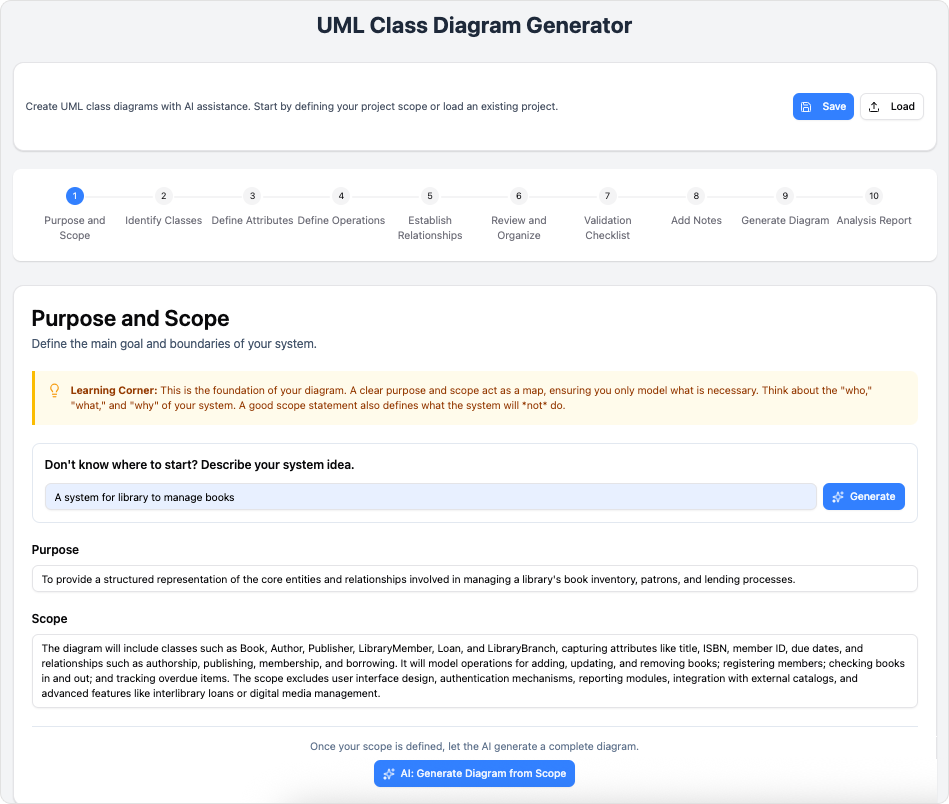
- Mục đích và phạm vi: Xác định mục tiêu cấp cao (ví dụ: “Hệ thống quản lý thư viện”).
- Nhận diện thực thể: AI đề xuất danh sách các lớp dựa trên phạm vi, bạn có thể chấp nhận, chỉnh sửa hoặc xóa bỏ.
- Chi tiết thuộc tính và thao tác: Ở các bước 3 đến 7, trình hướng dẫn dẫn bạn thêm thuộc tính, thao tác, quy tắc truy cập và mối quan hệ (liên kết, kế thừa, kết hợp).
- Tạo và phân tích: Bước 8 tạo ra sơ đồ trực quan. Bước 9 cung cấp báo cáo phân tích do AI tạo ra, bao gồm chất lượng thiết kế và các vấn đề logic tiềm ẩn.
- Hoàn thiện: Bước cuối cùng cho phép xuất ra các định dạng chuẩn như SVG, PlantUML hoặc một dự án Visual Paradigm đầy đủ.
3. AI tích hợp trong các phiên bản Desktop và trực tuyến
Visual Paradigm đã tích hợp trực tiếp chức năng tạo AI vào nền tảng Desktop và trực tuyến cốt lõi (phiên bản Professional trở lên). Điều này cho phép tạo nội dung liền mạch trong môi trường làm việc hiện có.
Để truy cập, hãy điều hướng đếnCông cụ >Sơ đồ AI. Chọn loại sơ đồ mong muốn—điều này mở rộng ngoài sơ đồ lớp để bao gồm sơ đồ Use Case, sơ đồ tuần tự, ERD và ArchiMate. Sau khi nhập mô tả văn bản, AI sẽ tạo sơ đồ trực tiếp trên bảng vẽ của bạn. Phương pháp này phù hợp nhất với người dùng đang làm việc trong một dự án lớn và cần nhanh chóng tạo bản mẫu một module cụ thể mà không cần chuyển sang trình duyệt web.
4. Quy trình chuyên nghiệp: Từ trò chuyện đến kỹ thuật
Đối với phát triển phần mềm cấp doanh nghiệp, quy trình mạnh mẽ nhất bao gồm việc kết hợp tốc độ của trợ lý trò chuyện với độ sâu của khách hàng Desktop.
Quy trình được đề xuất:
- Bản nháp:Sử dụng trợ lý trò chuyện AI để nhanh chóng tạo bản nháp và lặp lại ban đầu. Việc gõ thay đổi nhanh hơn so với việc kéo và thả các hộp thủ công.
- Xuất:Lưu mô hình đã được hoàn thiện dưới dạngVisual Paradigmdự án (.vpp).
- Kỹ sư:Mở dự án trong Visual Paradigm Desktop. Ở đây, bạn có thể thực hiện các tác vụ nâng cao như kỹ thuật mã hai chiều, mô phỏng, hợp tác nhóm và kiểm soát phiên bản.
- Mở rộng:Sử dụng các tính năng trên máy tính để tạo các góc nhìn khác, chẳng hạn như tự động tạo sơ đồ tuần tự từ sơ đồ lớp do AI tạo ra.
5. Các phương pháp tốt nhất và mẹo nâng cao
Để tối đa hóa hiệu quả của các công cụ này, người dùng nên áp dụng các chiến lược kích hoạt cụ thể và hiểu rõ khả năng của hệ sinh thái.
Chiến lược kích hoạt
Bắt đầu rộng và tinh chỉnh dần dần. Bắt đầu với một lời nhắc như“Các lớp trong hệ thống ngân hàng trực tuyến.”Khi các thực thể chính đã tồn tại, hãy đưa ra các lệnh cụ thể để tinh chỉnh, chẳng hạn như“Thêm một lớp PaymentGateway liên kết với Payment”hoặc“Đặt bội số cho Order đến OrderItem là 1 đến nhiều.”cung cấp gợi ý về lĩnh vực (ví dụ: “hệ thống fintech với các yếu tố tuân thủ”) cũng có thể giúp AI suy ra các thuộc tính cần thiết.
Tại sao Visual Paradigm vượt trội hơn các LLM tổng quát
Các LLM tổng quát thường xuất ra hình ảnh ASCII hoặc đoạn mã (như Mermaid.js) có thể hiển thị sai hoặc thiếu sự tuân thủ chuẩn UML. Visual ParadigmCác công cụ của Visual Paradigm được huấn luyện đặc biệt theo các tiêu chuẩn mô hình hóa, đảm bảo ký hiệu chính xác cho các khái niệm kết hợp, tổng hợp và kế thừa. Hơn nữa, khả năng cập nhật bố cục hình ảnh trực tiếp mà không cần tái_render mã mang lại trải nghiệm người dùng vượt trội đáng kể.
-
Công cụ tinh chỉnh sơ đồ trường hợp được hỗ trợ AI – Nâng cao sơ đồ thông minh: Tinh chỉnh được hỗ trợ AI giúp cải thiện độ rõ ràng, tính nhất quán và tính đầy đủ của sơ đồ trường hợp.
-
Chuyển đổi sơ đồ trường hợp thành sơ đồ hoạt động – Chuyển đổi được hỗ trợ AI: Tự động chuyển đổi sơ đồ trường hợp thành các sơ đồ hoạt động chi tiết để trực quan hóa luồng công việc của hệ thống.
-
Trình tạo sơ đồ lớp UML hỗ trợ AI – Visual Paradigm: Tạo sơ đồ lớp UML với các gợi ý được hỗ trợ AI, kiểm tra tính hợp lệ, xuất ra PlantUML và phân tích thiết kế.
-
Thành thạo sơ đồ hoạt động UML với AI | Blog Visual Paradigm: Khám phá cách các tính năng AI trong Visual Paradigm nâng cao quá trình tạo và tối ưu hóa sơ đồ hoạt động UML dành cho nhà phát triển và chuyên gia phân tích.
-
Cải cách bài thuyết trình của bạn: Gặp gỡ công cụ tạo bài thuyết trình Markdown được hỗ trợ AI của Visual Paradigm!: Chuyển đổi ý tưởng thô thành các bài thuyết trình được hoàn thiện, có hiệu ứng chuyển động bằng cách sử dụng đầu vào Markdown được hỗ trợ AI.
-
Lumina AI: Tạo ngay các slideshow video được hỗ trợ AI: Tạo các bài thuyết trình video động từ văn bản bằng AI, lý tưởng cho kể chuyện và tạo nội dung nhanh chóng.
-
Lumina AI Slideshow Maker: Tạo các bài thuyết trình ấn tượng bằng trí tuệ nhân tạo: Tạo các slide chất lượng chuyên nghiệp từ văn bản đơn giản bằng trí tuệ nhân tạo để tiết kiệm thời gian và khơi gợi sự sáng tạo.
-
Illumy AI Slideshow Maker: Tạo bài thuyết trình tức thì bằng trí tuệ nhân tạo: Tạo các slide chuyên nghiệp, phong phú về hình ảnh trong vài giây bằng AI, được thiết kế riêng cho các nhà tiếp thị, giáo viên và chuyên gia kinh doanh.
-
AI Animated Presentation Studio: Tạo các slide động, được hoạt hình một cách dễ dàng: Thiết kế các bài thuyết trình hấp dẫn, được hoạt hình bằng kể chuyện được hỗ trợ bởi AI, chuyển động và hiệu ứng hình ảnh.
-
Làm thế nào để cấu trúc danh sách công việc Jira ngay lập tức với Agilien AI: Tự động hóa việc cấu trúc danh sách công việc Jira bằng cách phân tích các câu chuyện người dùng và tạo các đợt phát hành và các dự án lớn được tổ chức bằng Agilien AI.
-
Kế hoạch viên danh sách công việc Jira được hỗ trợ bởi Agilien AI – Visual Paradigm: Tự động hóa và cải thiện việc lập kế hoạch danh sách công việc Jira với Agilien AI, giúp cấu trúc thông minh các câu chuyện người dùng và các dự án lớn cho các đợt phát hành hiệu quả.
-
Làm thế nào để tạo các bài thuyết trình hoạt hình ấn tượng với công cụ tạo bài thuyết trình Markdown AI của Visual Paradigm: Tạo các bài thuyết trình động, thu hút về mặt hình ảnh bằng các công cụ Markdown được hỗ trợ bởi AI trong Visual Paradigm.